 SubtitleRocket
Caption tutorial
How to Caption Podcast Clips People Actually Read
Turn an interview highlight into a readable social clip: merge choppy fragments, use a boxed style, and keep two speakers legible.
Podcast clips are the hardest captions in short-form: two voices, fast turn-taking, and sentences that matter word for word. The fix is structural: merge speech fragments into complete thoughts, use a boxed style that stays readable over any footage, and make speaker changes visible. All of it happens in the browser.
Speaker detection runs on longer uploads and can color-code each speaker’s captions. On very short clips, transcription may return a single track; the speaker toggle in the Subtitles panel controls this before you generate.
00 / Before you start
What conversation captions need
Interview clips fail for predictable reasons. Counter all four:
- Complete thoughts per cue. Rapid exchanges produce half-sentence fragments that read as noise.
- Guaranteed contrast. A translucent box keeps text legible over changing camera angles.
- Visible speaker changes. Readers must know who is talking without hearing the voices.
- Room for full sentences. Quote-worthy moments deserve compact type that fits the whole line.
01 / Upload
Upload the highlight clip
Cut the highlight in your podcast tool first, then bring the finished clip into the editor at /app (or press Try demo to follow the steps without a file). Speaker detection can be toggled in the Subtitles panel before generation; the audio is extracted in the browser and sent for transcription while the video stays local.
02 / Merge fragments
Merge choppy fragments into readable lines
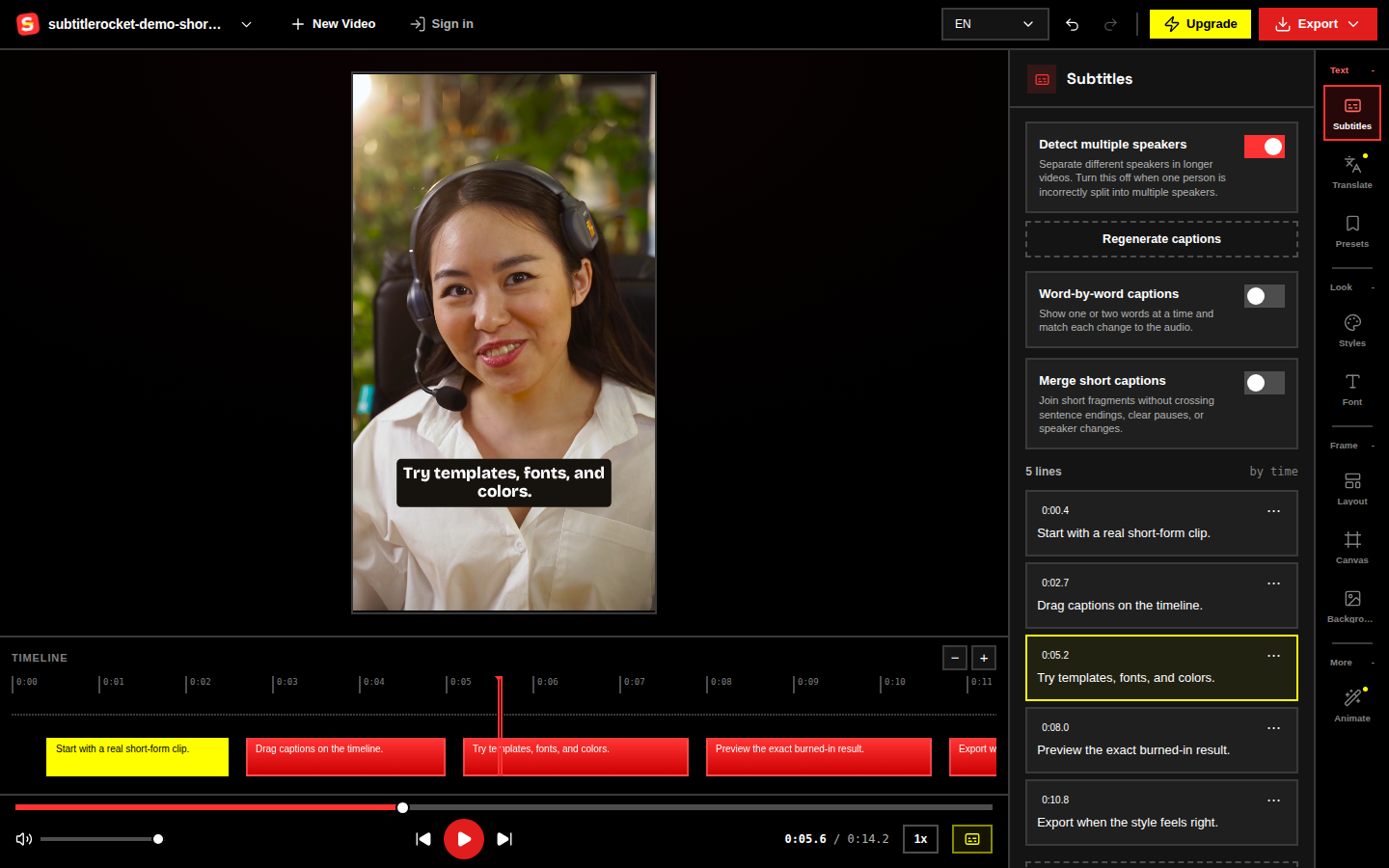
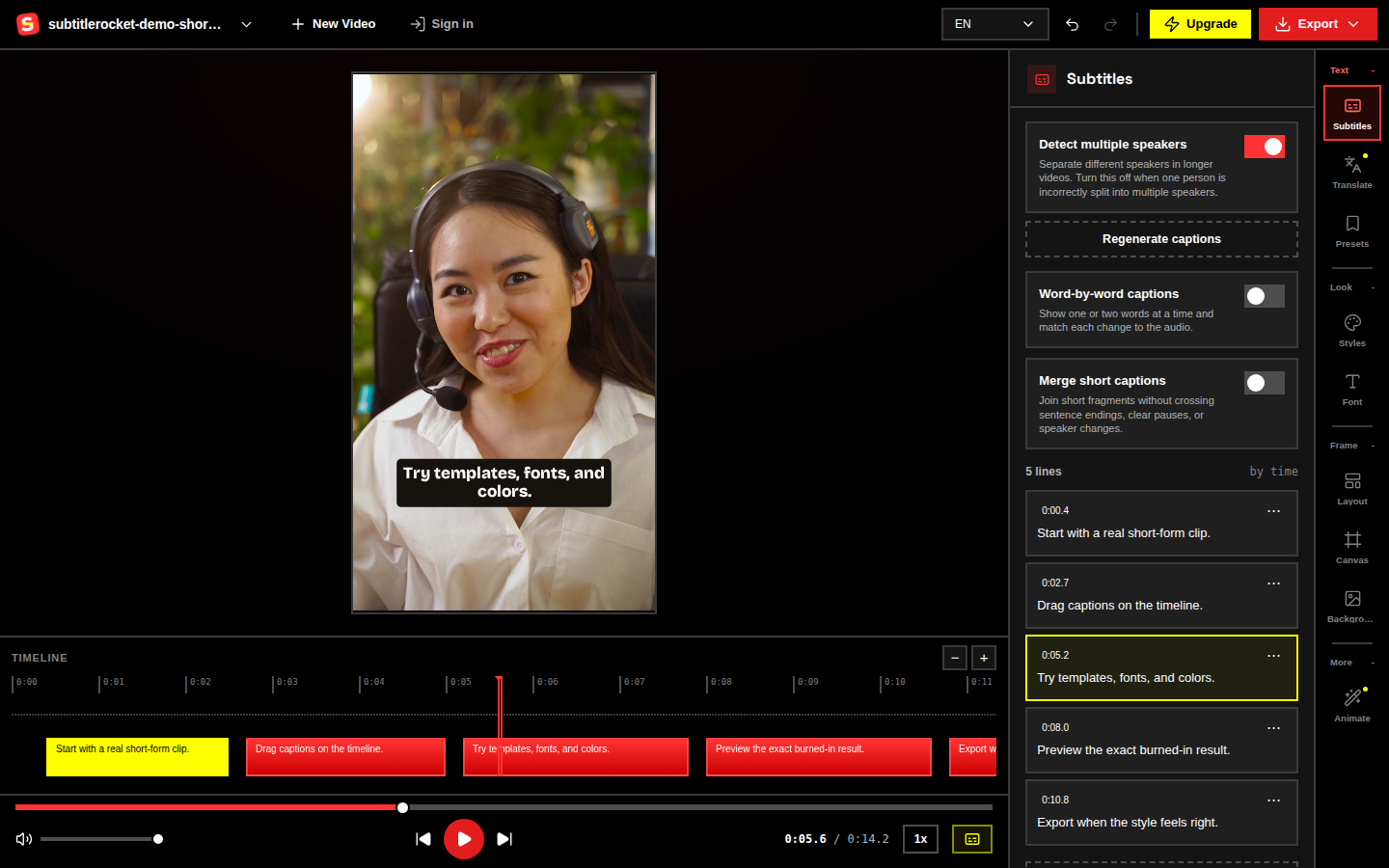
Conversational speech transcribes as short bursts. Open the Subtitles panel and turn on Merge short captions; it joins fragments while respecting sentence endings, clear pauses, and speaker changes, so lines never merge across two voices.
Then read the list once and fix names, company names, and numbers. In interviews these carry the value of the quote, and they are exactly what recognizers miss.
03 / Boxed style
Apply the Podcast Clip style
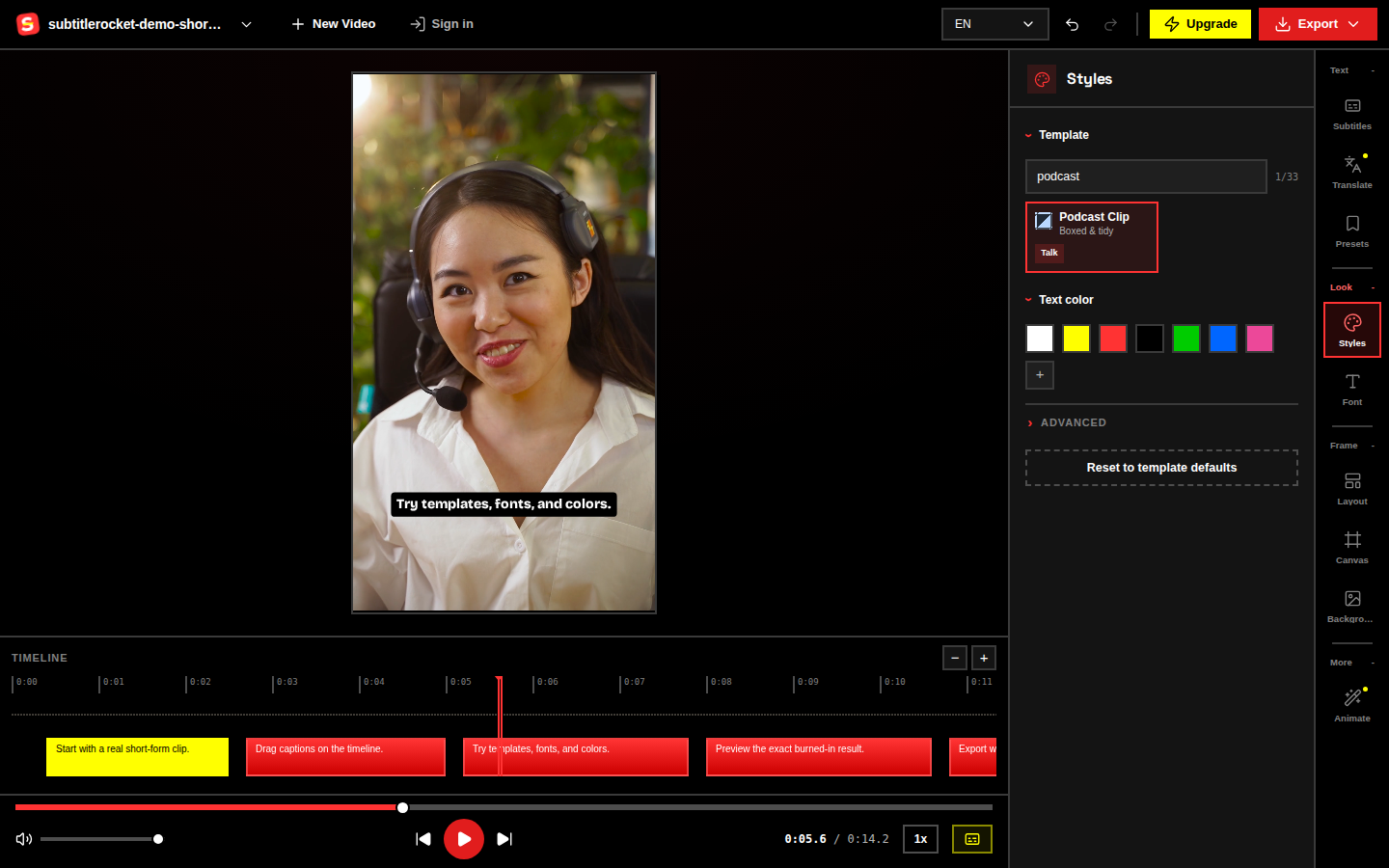
Open Styles and choose Podcast Clip: white text on a translucent black box, sized for full sentences in the lower third. The box is what keeps the text readable when the shot cuts between speakers, rooms, or B-roll. Quote Pull is the alternative when the clip is a single strong statement.
04 / Two speakers
Make the two voices readable
Play a fast exchange and check:
- Speaker changes never share one caption: split any line that crosses voices.
- If speaker colors are on, each voice keeps one consistent color for the whole clip.
- Captions clear both faces in a split-screen layout; drag the block in Layout if needed.
- The longest quote fits without shrinking the font; shorten the line instead.
Caption what was meant, not every sound. Dropping “you know” and false starts makes a quote land harder, and no one accuses a caption of misquoting a filler word.
05 / Export
Export and publish
Watch the clip muted once; if the conversation is followable from text alone, it will survive the feed. Then open Export: rendering runs on your device, free at 720p with a small watermark.
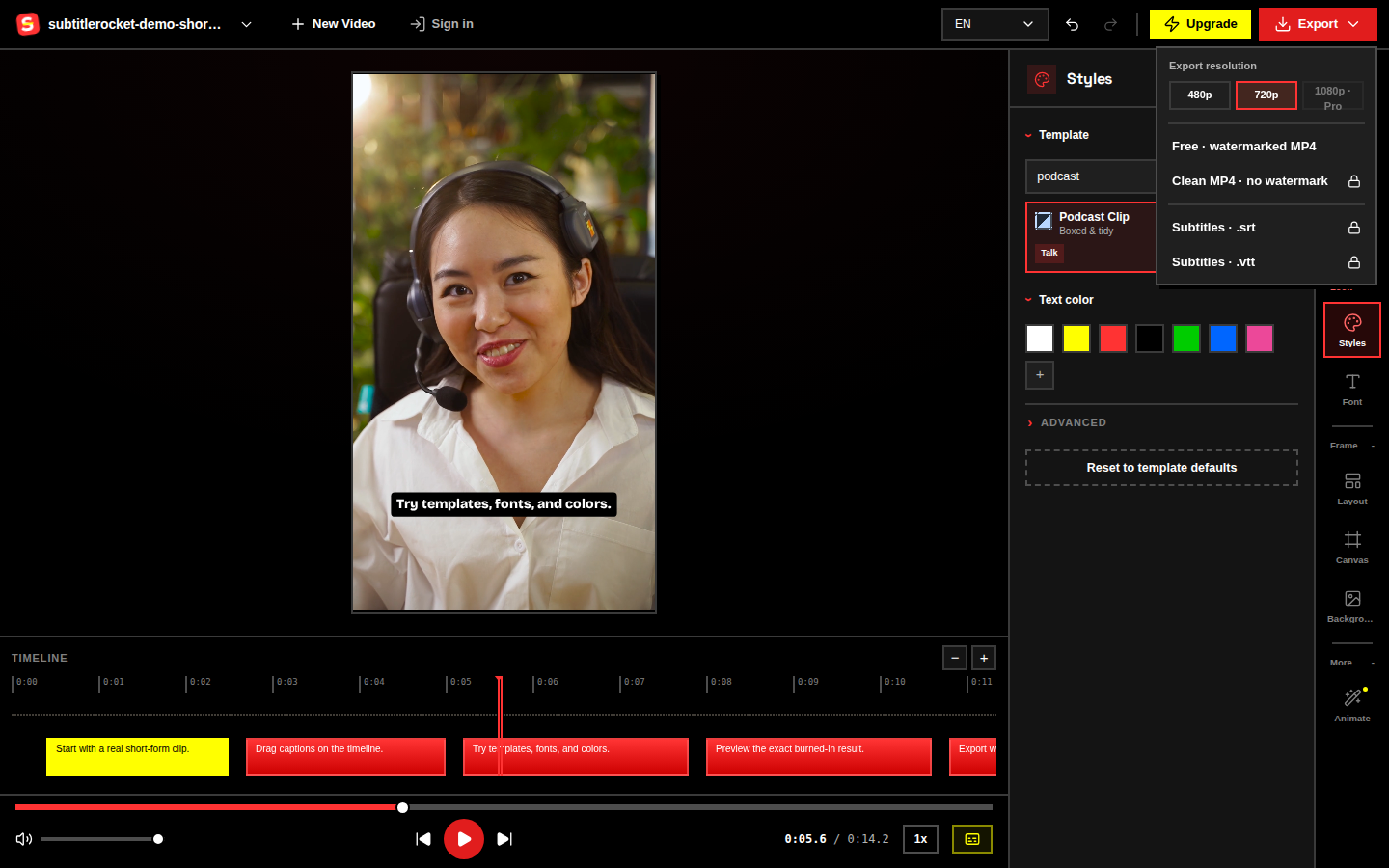
Pro ($7/month or $56/year) removes the watermark at 1080p and adds SRT/VTT downloads; useful if the same transcript also feeds your show notes.
Caption a real highlight
Make your next podcast clip readable on mute.
Upload the finished highlight, merge the fragments, and export a boxed, legible clip.
Open the editor