 SubtitleRocket
Caption tutorial
How to Make Karaoke Captions That Actually Follow the Voice
Set up word-synced highlight captions: the active word changes color exactly on its timestamp, in the preview and in the exported MP4.
Karaoke captions highlight each word as it is spoken, giving viewers a follow-along reading rhythm. The effect depends entirely on word-level timing: transcription returns a timestamp for every word, and the renderer advances the highlight on those timestamps; the same engine that renders the preview burns the sweep into the export.
The highlight follows per-word timestamps from speech transcription. That means it works on transcribed captions; a line you type by hand has no word timings, so it falls back to a fixed emphasis word instead of a moving sweep.
00 / Before you start
What makes the karaoke effect land
Four ingredients, all of them checkable in the preview:
- Real word timing. The highlight moves on transcription timestamps, not on an even split of the line.
- One clear accent color. Yellow on white-with-outline is the classic because it reads at a glance.
- Short lines. The sweep is legible across four to six words; across fourteen it becomes noise.
- Clean transcript. A misheard word gets highlighted too: fix the text before styling.
01 / Generate
Generate captions from speech
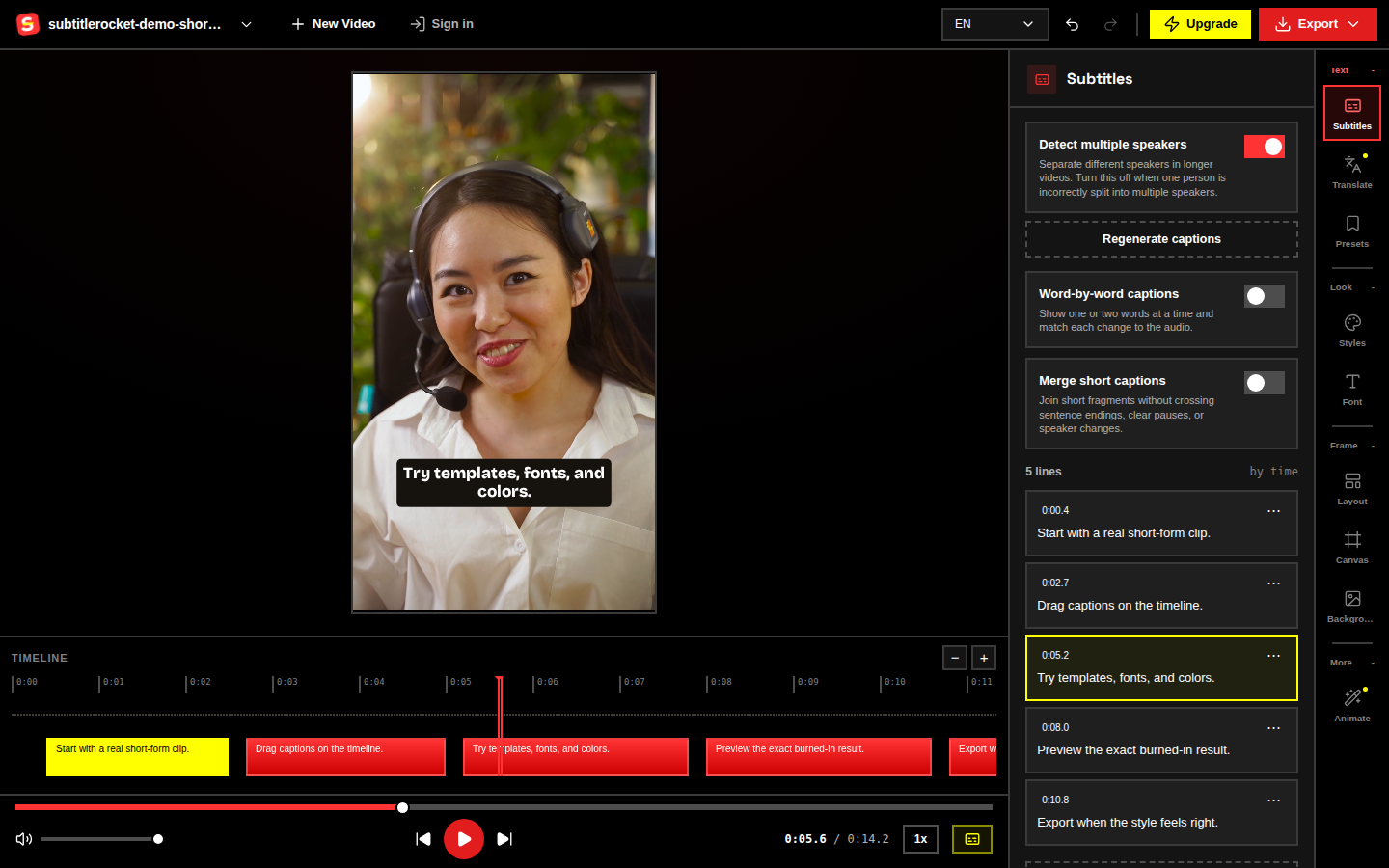
Open the editor and upload a spoken clip (or press Try demo). The captions come back with per-word timestamps, that timing data is what the karaoke effect runs on, which is why generating from speech beats pasting a transcript for this style.
02 / Apply the style
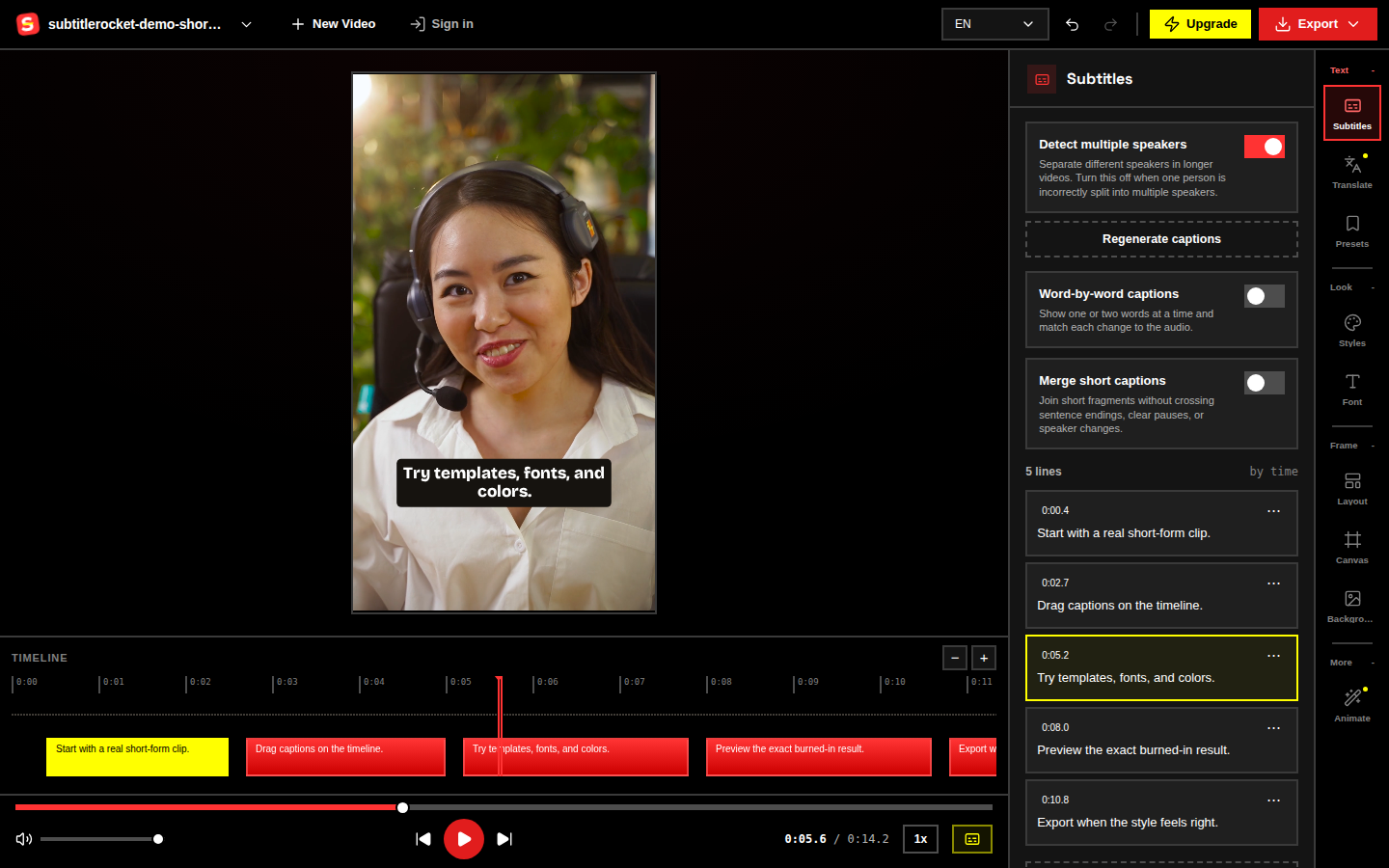
Apply the Highlight template
Open Styles and pick Highlight (the karaoke preset): white text, black outline, and a yellow accent on the word being spoken. Beast is the louder variant (ALL CAPS with a green pop), and TikTok Pop moves the accent onto a colored word-box instead.
Correct the transcript before judging the effect. The highlight draws the eye to each word in turn, so a wrong word gets amplified, not hidden.
03 / Verify sync
Verify the sweep against the voice
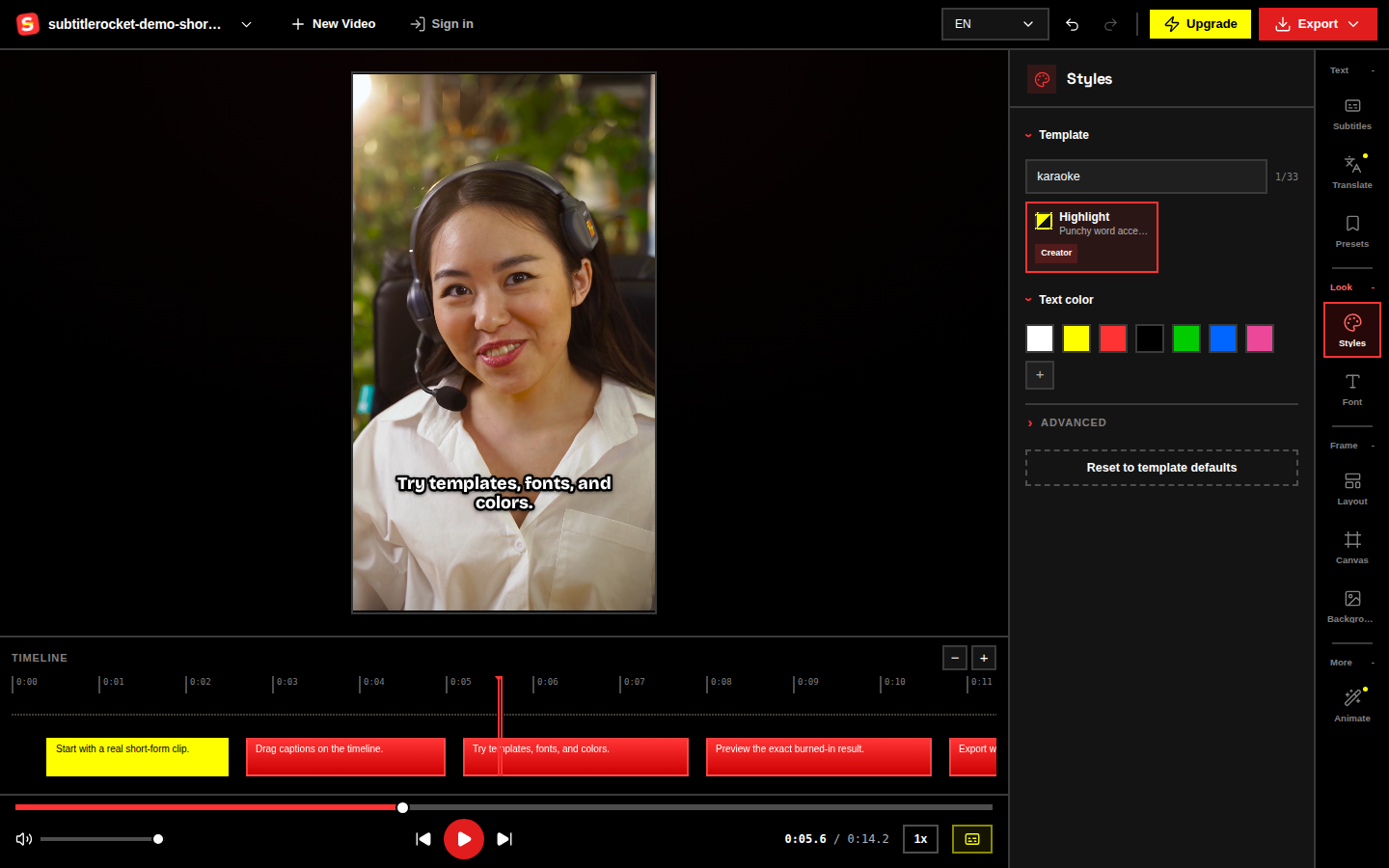
Play a fast sentence and watch the accent: it should land on each word as the speaker hits it. Because the highlight advances on the transcription’s word timestamps, drift means the underlying line timing is off: select the caption block on the timeline and drag its edges until the words line up.
04 / Tune
Tune size, color, and position
The preset is a starting point. In Font and Layout, check:
- The accent color still reads over your footage: swap yellow for green or orange if the video is warm.
- Lines stay in the four-to-six word range so the sweep has room to travel.
- The caption sits in the lower third, clear of platform UI (65-78% of frame height is safe on TikTok, Reels, and Shorts).
- Outline-only styles have enough contrast; over very bright footage, switch to a boxed template.
Mute the clip and read along with the highlight only. If your inner voice finishes the sentence in step with the sweep, the timing is right.
05 / Export
Export with the sweep baked in
Open Export when the sweep tracks the voice. Preview and export share one canvas renderer, so the word-by-word highlight you watched is exactly what appears in the MP4; nothing is re-approximated at render time.
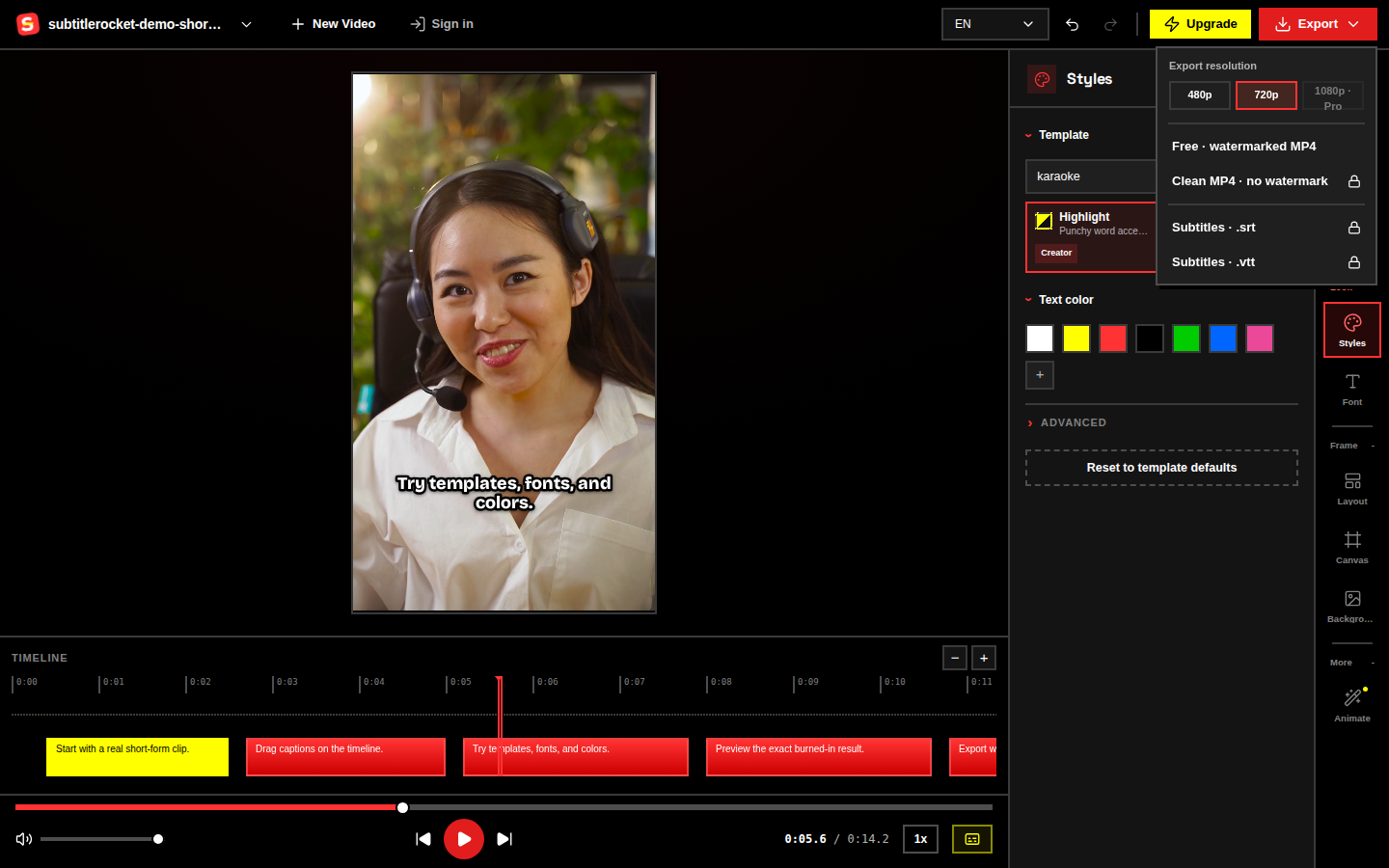
Free gets you a 720p watermarked MP4 with no signup. Pro ($7/month or $56/year) exports clean 1080p and adds SRT/VTT downloads.
Hear it, see it
Open the editor with the Highlight style selected.
Upload a spoken clip and watch the accent follow the voice, word by word.
Open the editor