 SubtitleRocket
Caption tutorial
How to Make Word-by-Word Captions (One or Two Words at a Time)
Turn a spoken clip into rapid word-by-word captions with one toggle. Each word keeps its own timestamp, so the cuts land exactly on the voice.
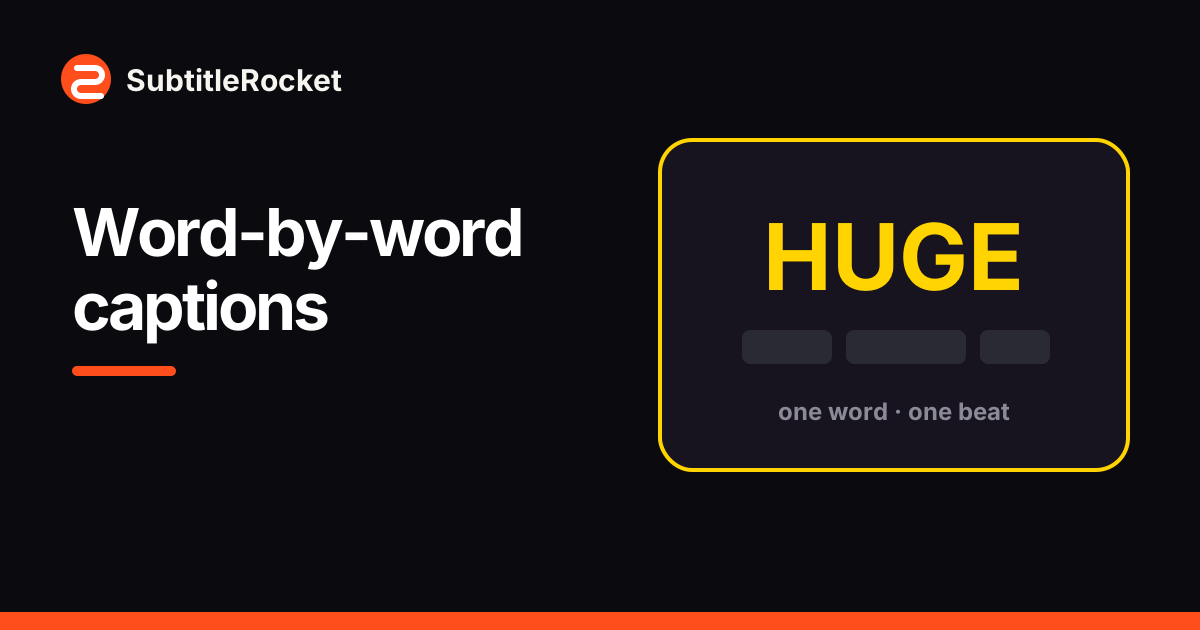
Word-by-word captions show one or two words at a time, cut exactly on the voice. The style works because it forces a reading rhythm: viewers cannot skim ahead, so they stay locked on the words. In SubtitleRocket this is a single toggle, not a manual re-timing job; every transcribed word already carries its own timestamp.
The Word-by-word toggle re-cuts captions using the transcription’s per-word timings, so each chunk appears exactly when the word is spoken. Splitting lines by hand cannot get that precision. Manually typed captions have no word timings, so generate captions from speech first.
00 / Before you start
When should captions go word-by-word?
The style is a pacing tool, not a default. It earns its place when:
- The first three seconds decide everything. Hooks and opening claims hit harder when each word lands separately.
- The delivery is fast. Rapid speech reads better in small chunks than in dense two-line blocks.
- The video is watched on mute. A single large word is legible even at feed-scroll speed.
- You want emphasis without extra graphics. The cut itself is the emphasis, no stickers or zooms needed.
01 / Load a clip
Open the editor and load a clip
Open the editor at /app and upload an MP4, MOV, or WebM, or click Try demo to follow along with the sample clip. Your video stays in the browser; for uploads, only the extracted audio is sent for transcription, and the generated captions come back with a timestamp on every single word.
02 / One toggle
Turn on Word-by-word captions
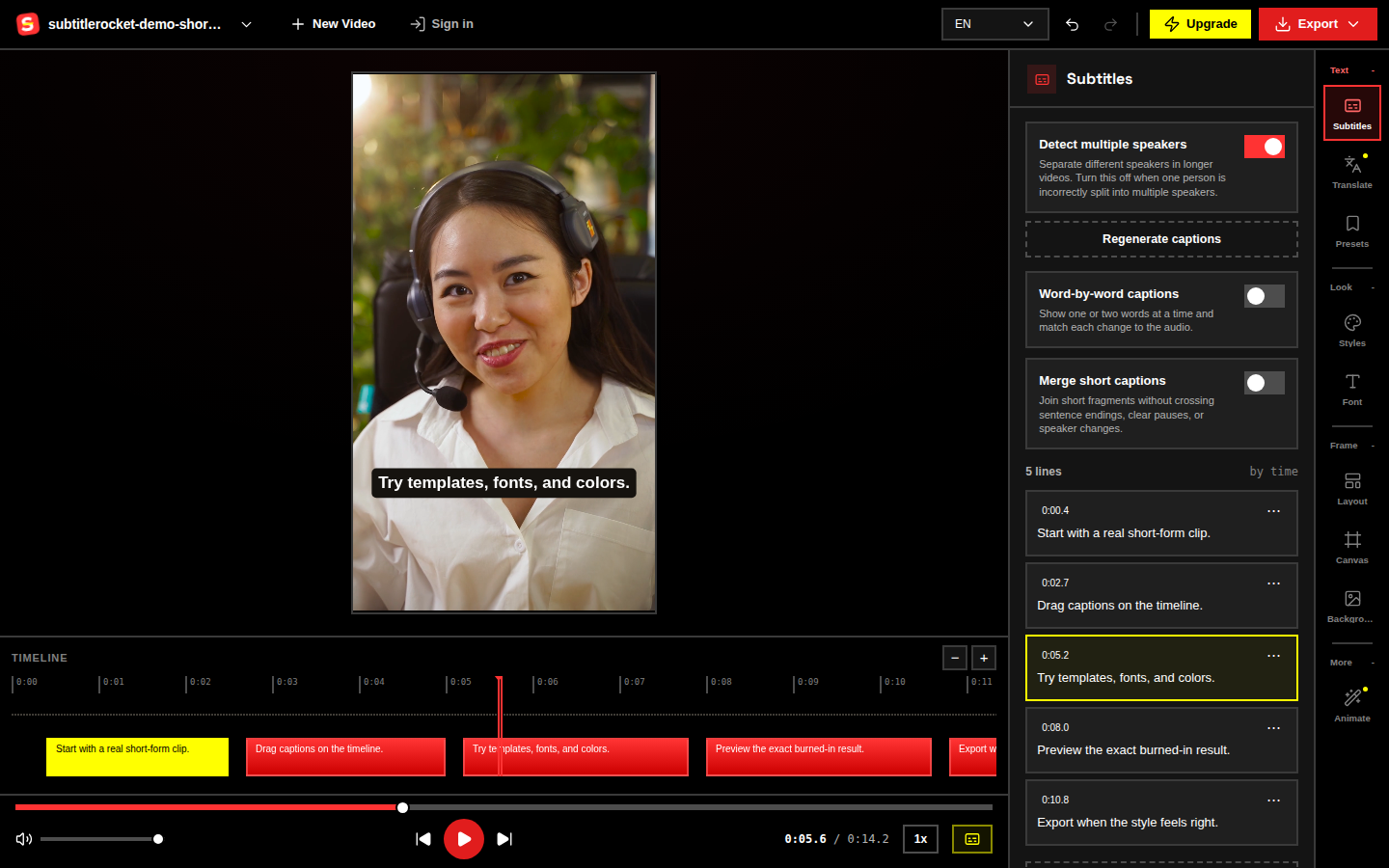
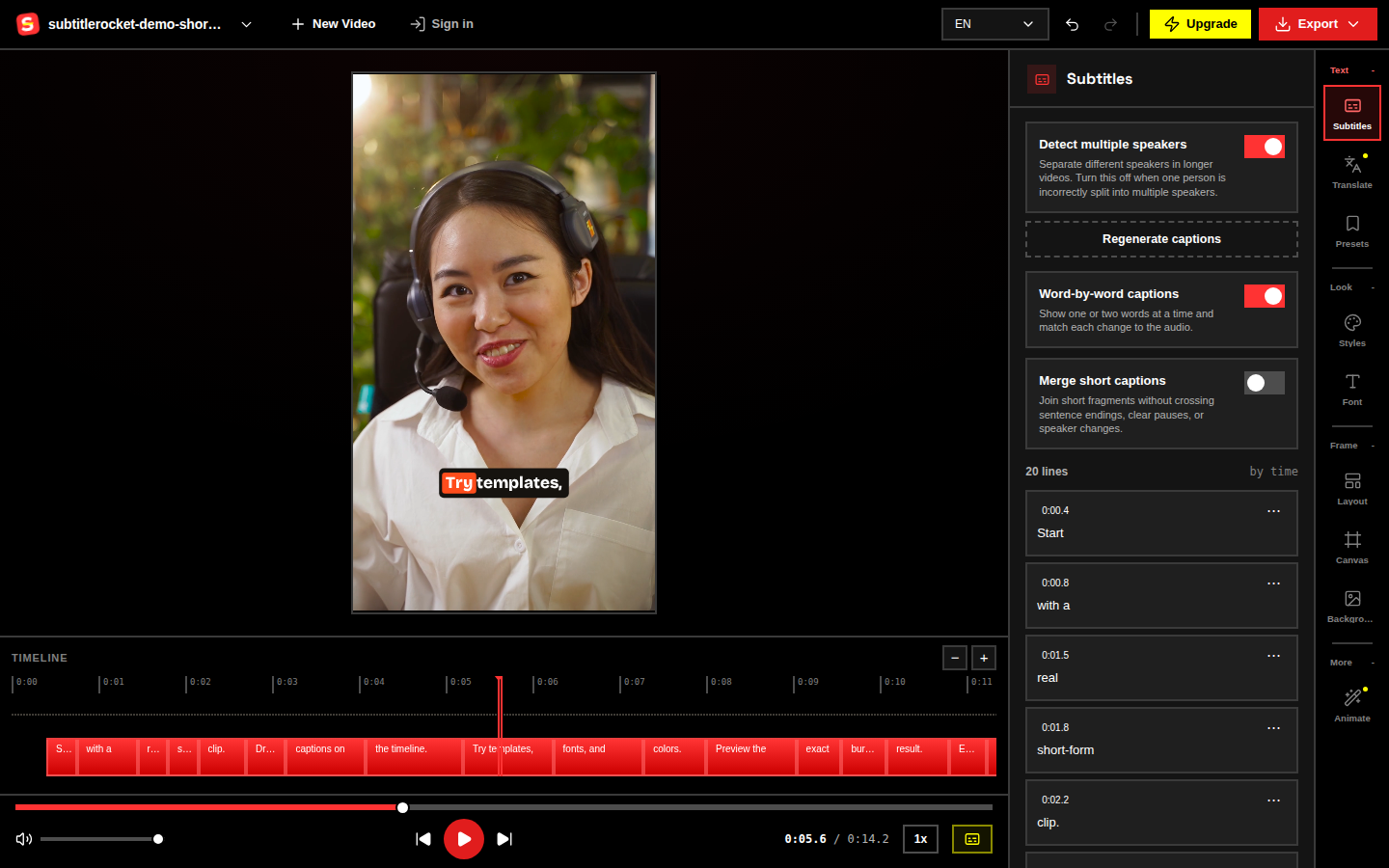
Open the Subtitles panel and find the “Word-by-word captions” toggle near the top. Flip it on: the caption list re-cuts into one- and two-word chunks, each aligned to its word’s timestamp from the transcription.
Fix any misheard words first; corrections are easier while lines are still full sentences. You can flip the toggle off and on again at any time; the underlying word timings are kept.
03 / Style it
Pick a style that suits single words
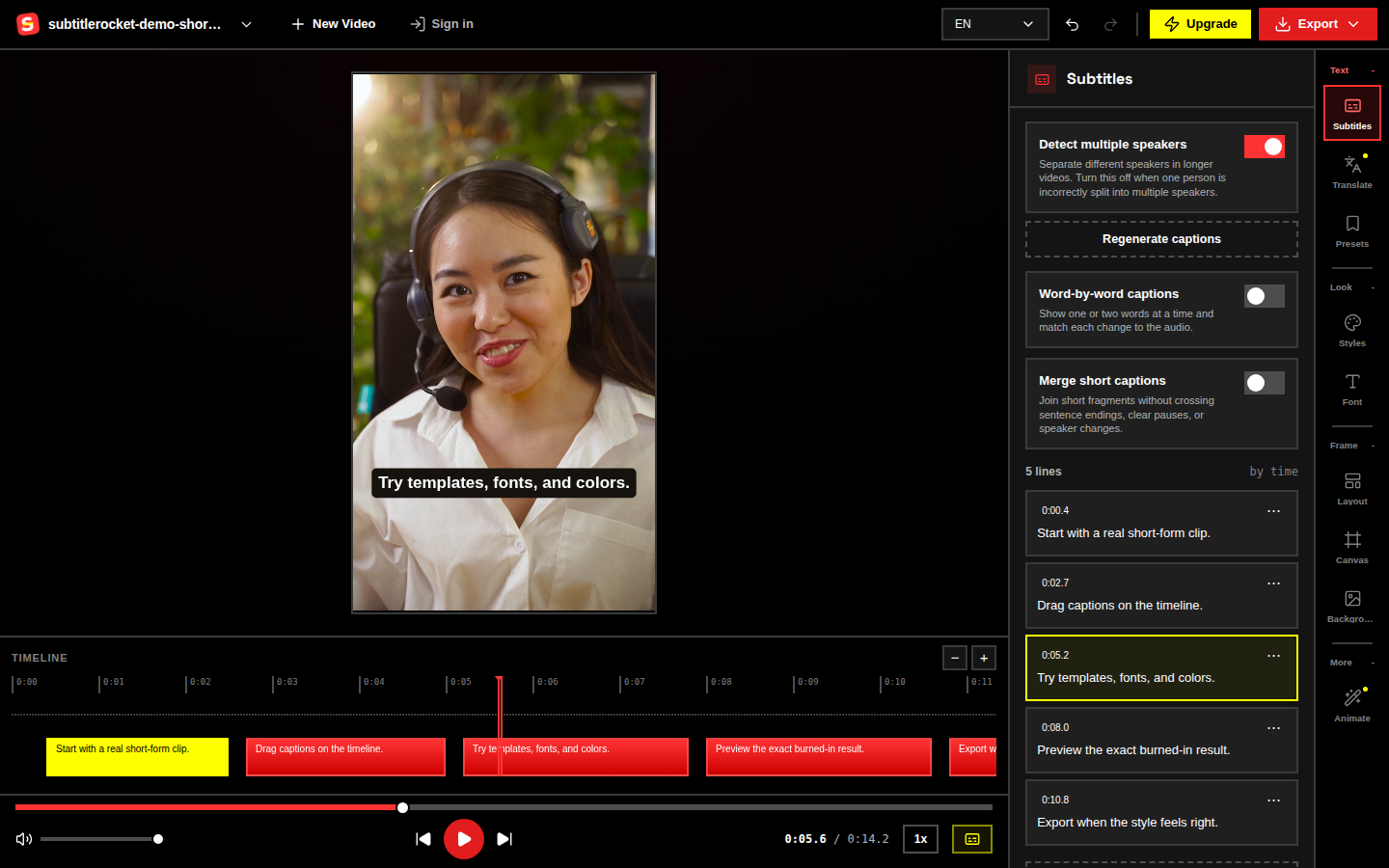
One word on screen wants big type. Open Styles and try Plain White or Big Creator for the classic look, or Beast if you want ALL CAPS with a green active-word pop. Then open Font and push the size up; a single word can be far larger than a sentence-length caption without wrapping.
04 / Check the pace
Play the clip and check the rhythm
Word-by-word lives or dies on pacing. Play the whole clip once and watch for:
- Words that flash too fast to read: merge those chunks back or slow the section down by editing the text.
- Filler words (“um”, “like”) getting their own beat: delete them from the caption list.
- Numbers and names that read better together: keep “$10,000” as one chunk, not three.
- The caption position staying clear of platform UI in the lower third.
If any single word stays up longer than about a second, the effect stalls. Either merge it with the next chunk or cut the pause in your video editor first.
05 / Export
Export the finished clip
Open Export when the rhythm feels right. Rendering runs on your device, and the word cuts you previewed are exactly what gets burned into the MP4; preview and export share one renderer.
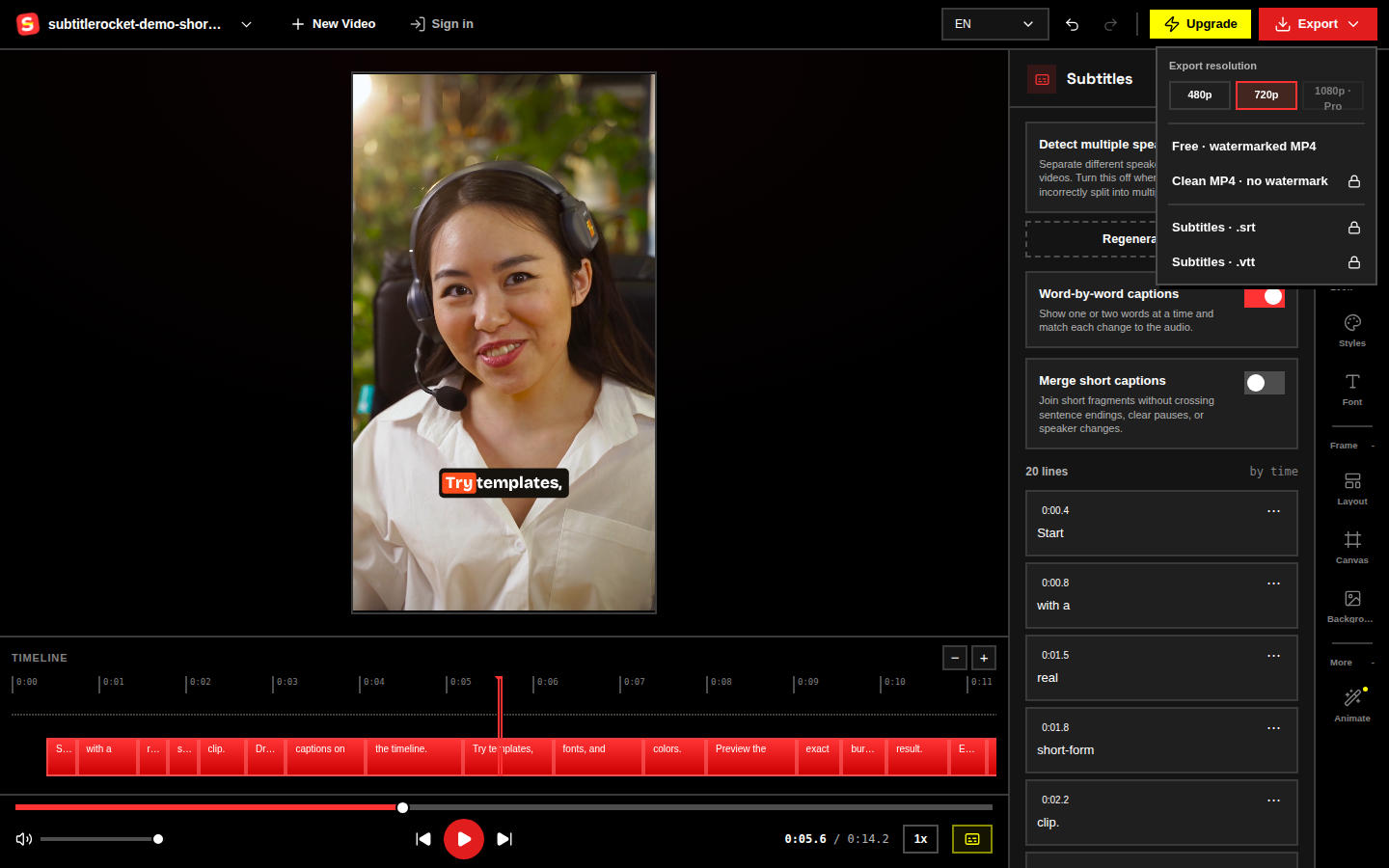
The free export is a 720p MP4 with a small watermark, with no account needed. Pro ($7/month or $56/year) unlocks clean 1080p plus SRT/VTT downloads if you also want the text as a file.
Try it on a real clip
Open the editor with the word-by-word preset.
Upload a clip or load the demo, flip one toggle, and watch the captions cut on every word.
Open the editor