 SubtitleRocket
Workflow tutorial
How to Turn a Video Into an SRT File (With Clean Timing)
Generate timestamped captions from a video, fix the text and timing on a real timeline, and download the result as SRT or VTT.
An SRT file is just numbered cues with start and end times, but a useful SRT needs accurate words and timing that matches the speech. The fastest route is to transcribe the video, correct the transcript while watching the clip, and only then export the file. This guide walks that exact flow in the browser editor.
Generating captions, editing text, and fixing timing are free (90 transcription minutes per month, clips up to 15 minutes). Downloading the captions as an SRT or VTT file is included with Pro. The free export instead burns the captions into a watermarked 720p MP4.
00 / Before you start
What makes an SRT file good?
Four things separate a usable subtitle file from a machine dump:
- Correct words. Names, numbers, and jargon are exactly where speech recognition slips.
- Cue timing that matches the voice. A line that lingers after the speaker moved on reads as broken.
- Readable line lengths. One thought per cue; dense three-line cues get skipped.
- No stray fragments. Half-word cues from rapid speech should be merged into real lines.
01 / Upload
Upload the video and let it transcribe
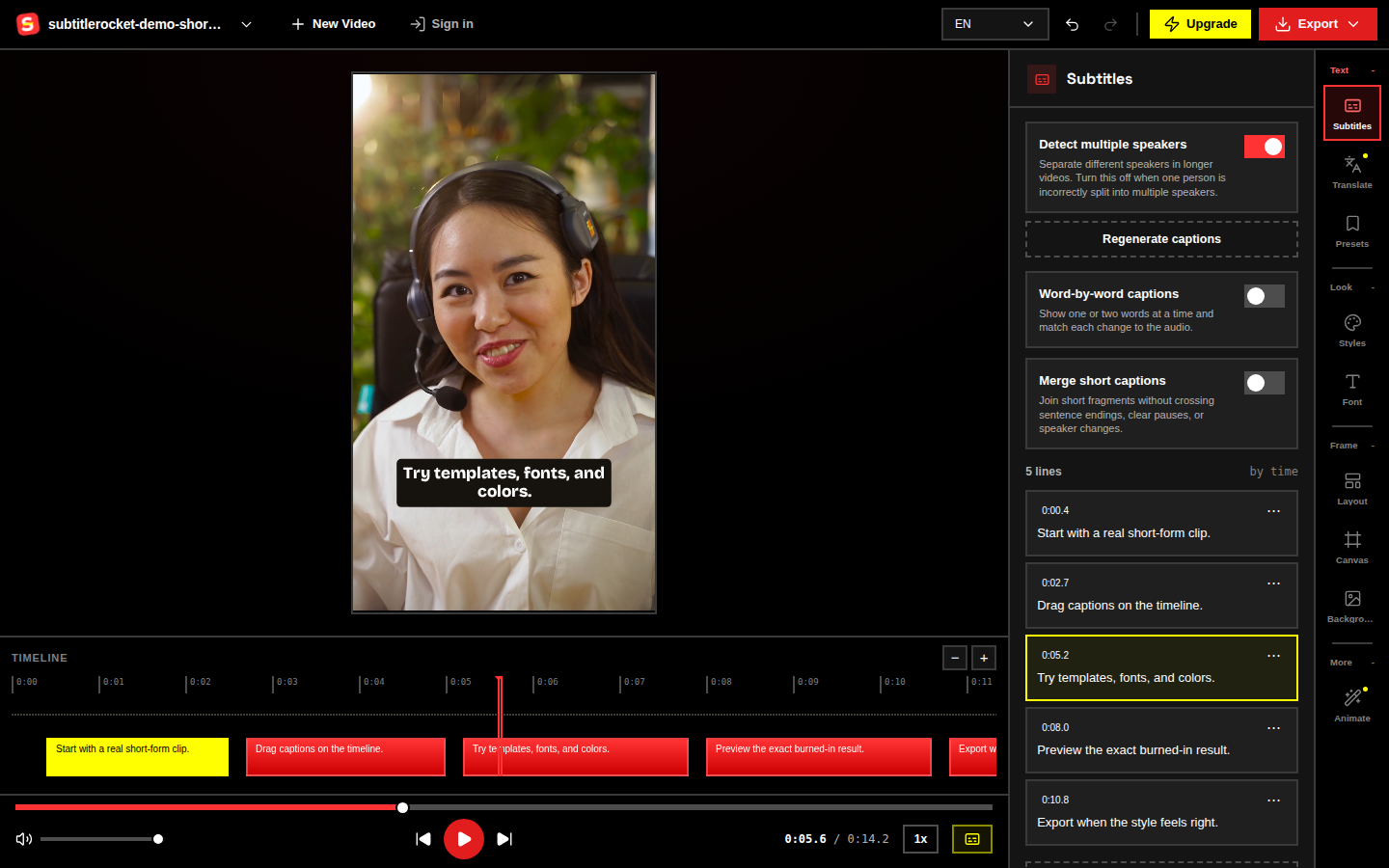
Open the editor and drop in an MP4, MOV, or WebM up to 15 minutes (or click Try demo to explore first). The video stays in your browser; the extracted audio is sent for transcription and comes back as timestamped caption segments in the Subtitles panel.
02 / Correct the text
Correct the transcript line by line
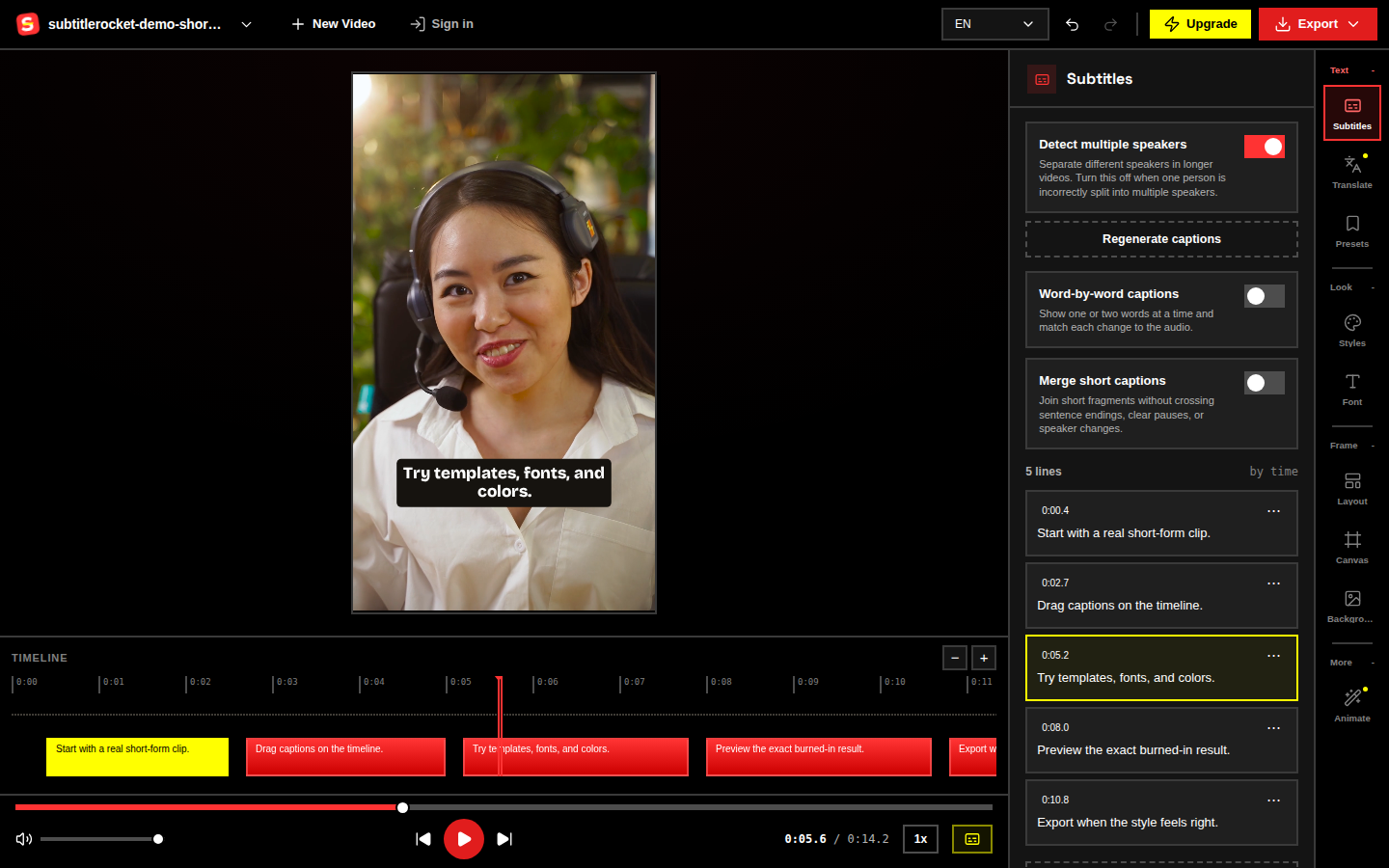
Play from the start and fix what the recognizer missed: names, numbers, punctuation. Click into any caption to edit its text directly. Use the line menu to add or delete lines where the segmentation got it wrong.
For choppy fragments, turn on Merge short captions; it joins fragments without crossing sentence endings, clear pauses, or speaker changes, which is exactly the structure you want in the final SRT.
03 / Drag the timing
Repair timing on the timeline
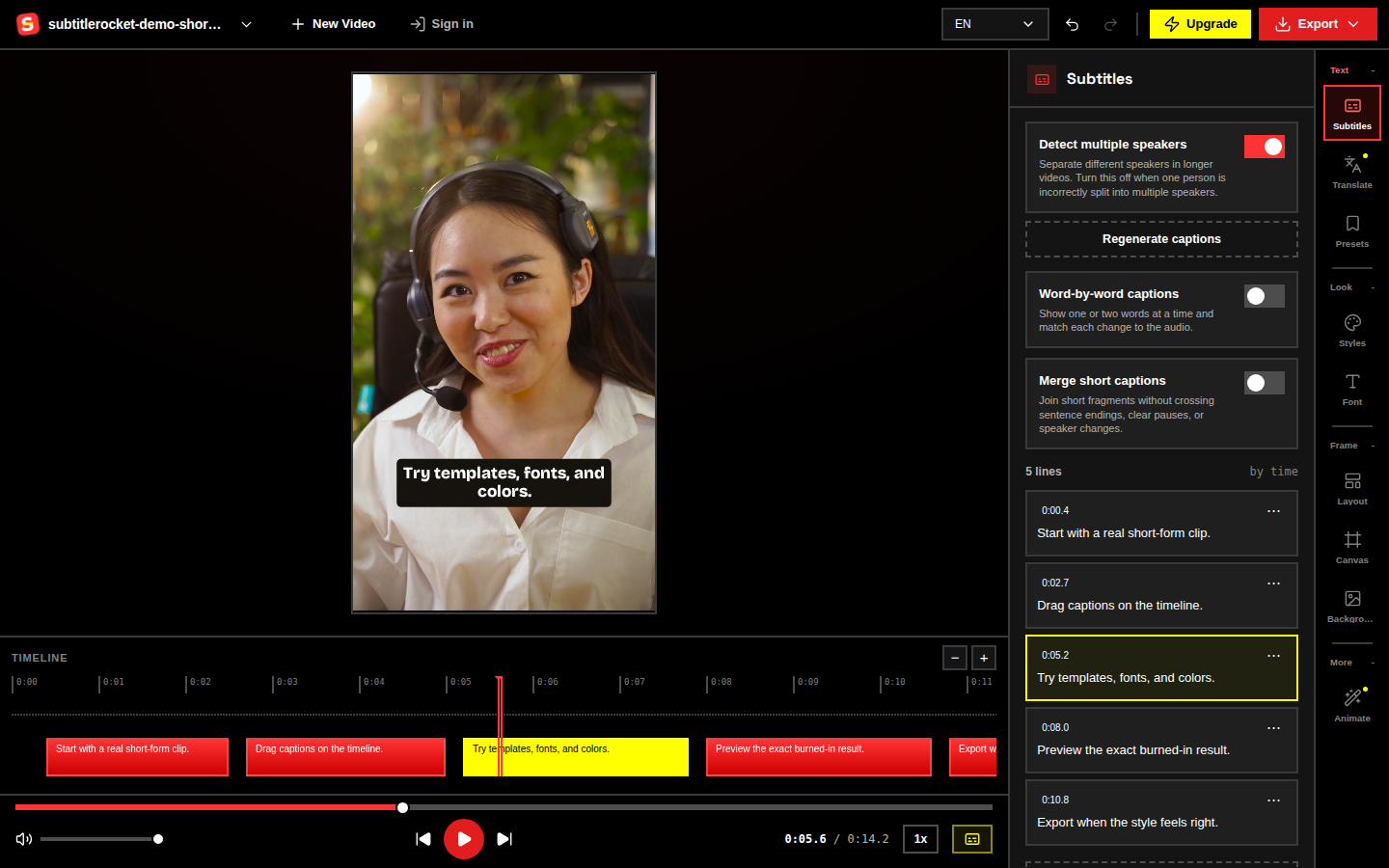
Select a caption block on the timeline below the preview. Drag the whole block to shift it, or drag its left and right edges to change when the cue starts and ends. These edits go straight into the SRT timestamps, so fix any line that enters late or lingers after the speech.
04 / Review
Run two final checks
Before exporting the file, play the clip through twice:
- Once with sound: does every cue appear as its words are spoken?
- Once muted: can you follow the video from the text alone?
- Scan the caption list for cues under one second: merge or extend them.
- Check the longest lines still read in one glance; split anything that wraps to three lines.
If every cue is off by the same amount after a trimmed intro or a different cut, don’t retime lines one by one. Shift every timestamp together with the free browser tool. Open the SRT time shift tool →
05 / Download
Download the SRT (or VTT)
Open Export and choose the subtitle file format: SRT for editing tools and players, VTT for web video. Both carry the corrected text and the timeline timing you just fixed. File downloads are part of Pro ($7/month or $56/year).
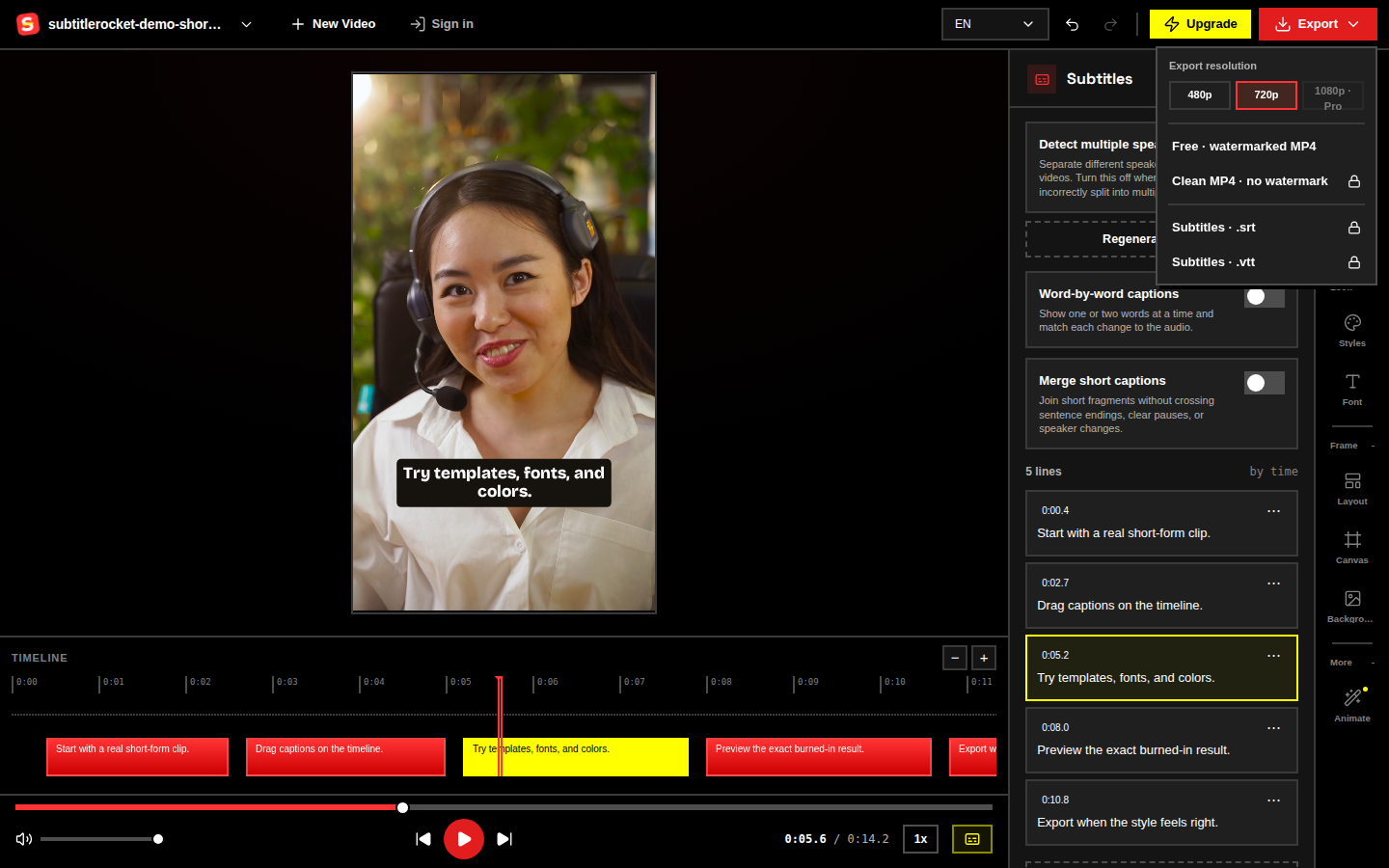
If what you actually need is the captions on the video, use the free path instead: a 720p MP4 with the captions burned in and a small watermark, no account required.
Get your transcript
Turn your video into clean, timed captions.
Upload a clip, correct the words, fix the timing, and take the result as SRT, VTT, or a captioned MP4.
Open the editor