 SubtitleRocket
Caption tutorial
Online Subtitle Editor: How to Fix Auto-Generated Captions
Correct wrong words, split or merge caption lines, retime segments on the timeline, and export a readable result from your browser.
An online subtitle editor is most useful after automatic transcription, when the words are nearly right but not ready to publish. SubtitleRocket lets you edit subtitles, reshape awkward lines, and repair timing without sending the video file to a server. Start with the instant demo below, or upload a real clip when you are ready.
The video stays in your browser; only audio is sent for transcription, and rendering is fully client-side. Editing and previewing need no account. Export works in Chrome, Edge, and Safari 17 or later, but not Firefox.
00 / Before you edit
What makes an auto-caption ready to publish?
Review the transcript in this order so that styling does not hide a more important problem:
- Correct words. Fix names, numbers, product terms, and words the speech recognizer misheard.
- Natural line breaks. Keep one compact idea per segment, and split or merge around real pauses.
- Comfortable reading time. A viewer should finish each line before it disappears without racing ahead of the speaker.
- Readable styling. Use contrast and placement that survive a small phone screen and a busy background.
01 / Start safely
Open the instant demo or choose a real video
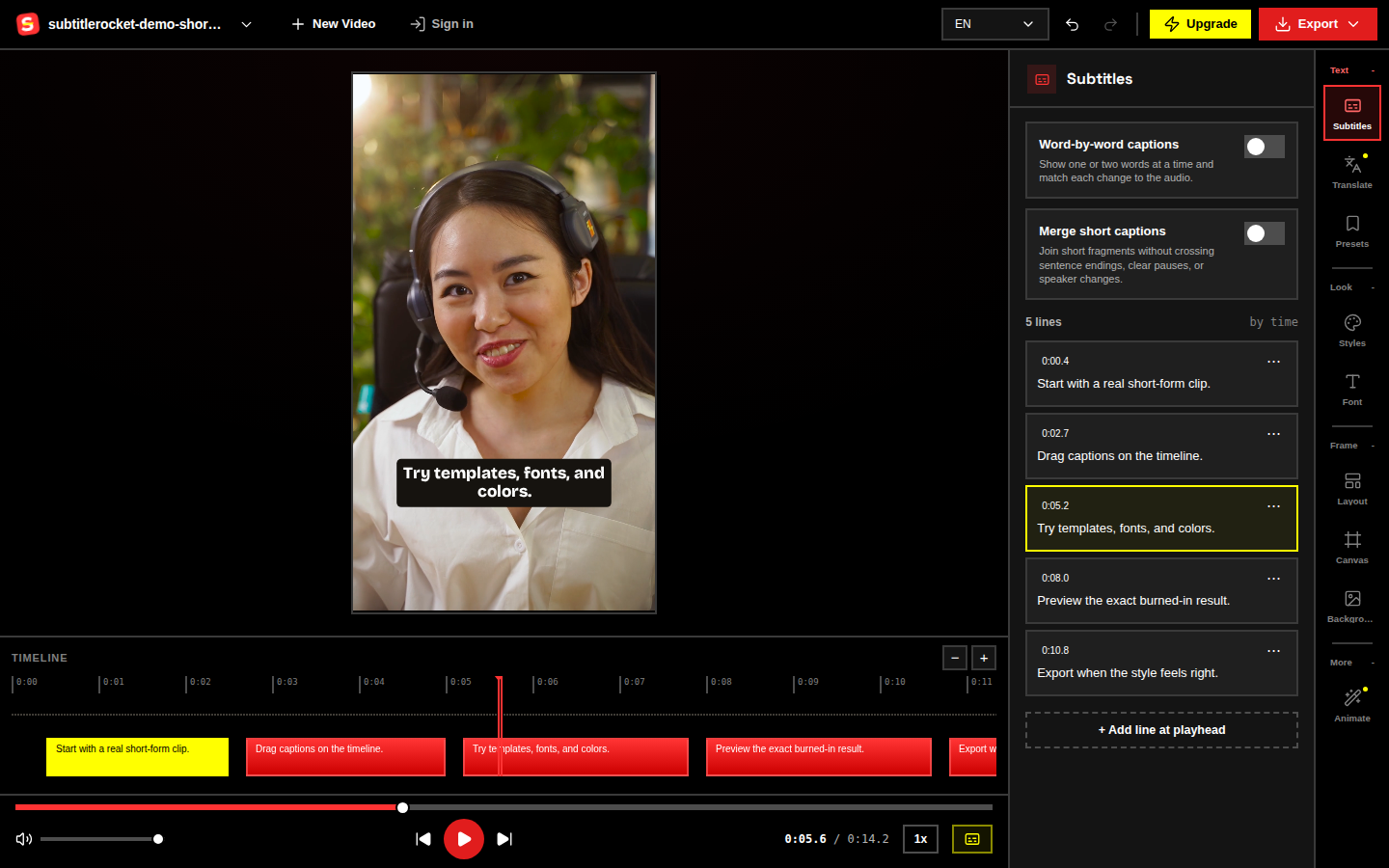
Open /app and click Try demo. A sample clip with captions loads instantly in the browser, so no caption generation happens and you can explore every editing control without an account. For your own video, choose an MP4, MOV, or WebM file; SubtitleRocket extracts the audio for transcription and returns editable captions while the video itself remains local.
Open the online subtitle editor →
02 / Fix the transcript
Correct words and reshape lines in Subtitles
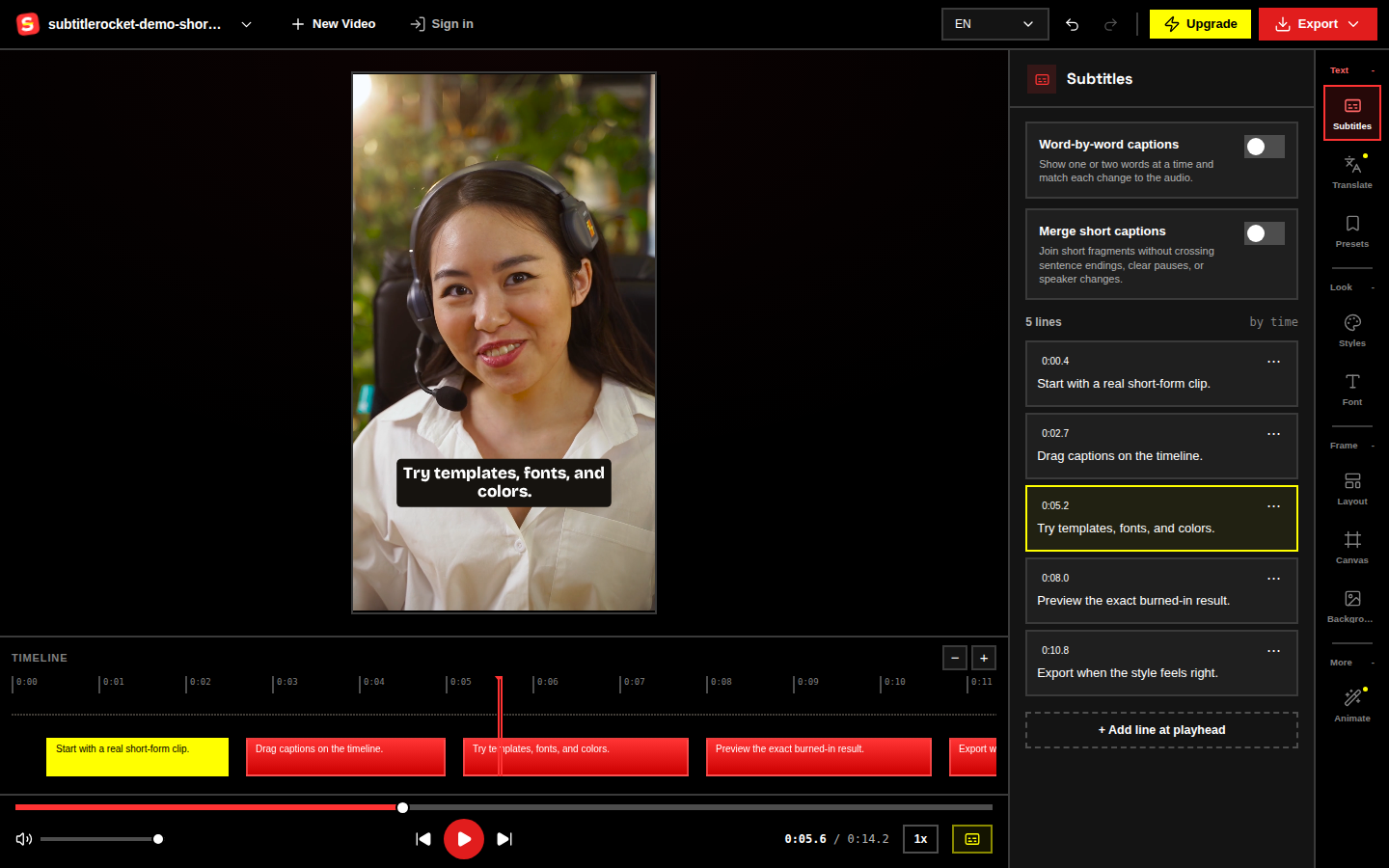
Open the Subtitles panel and play the clip line by line. Click directly into a caption to correct spelling, punctuation, names, and numbers. Use the line menu to add a line after the current one or delete an unnecessary line.
To split a dense caption, add a line, move the second thought into it, then set its place on the timeline. To reduce choppy fragments, turn on Merge short captions and choose the character threshold. The merge respects sentence endings, clear pauses, and speaker changes.
03 / Repair the timing
Drag timeline segments to repair timing
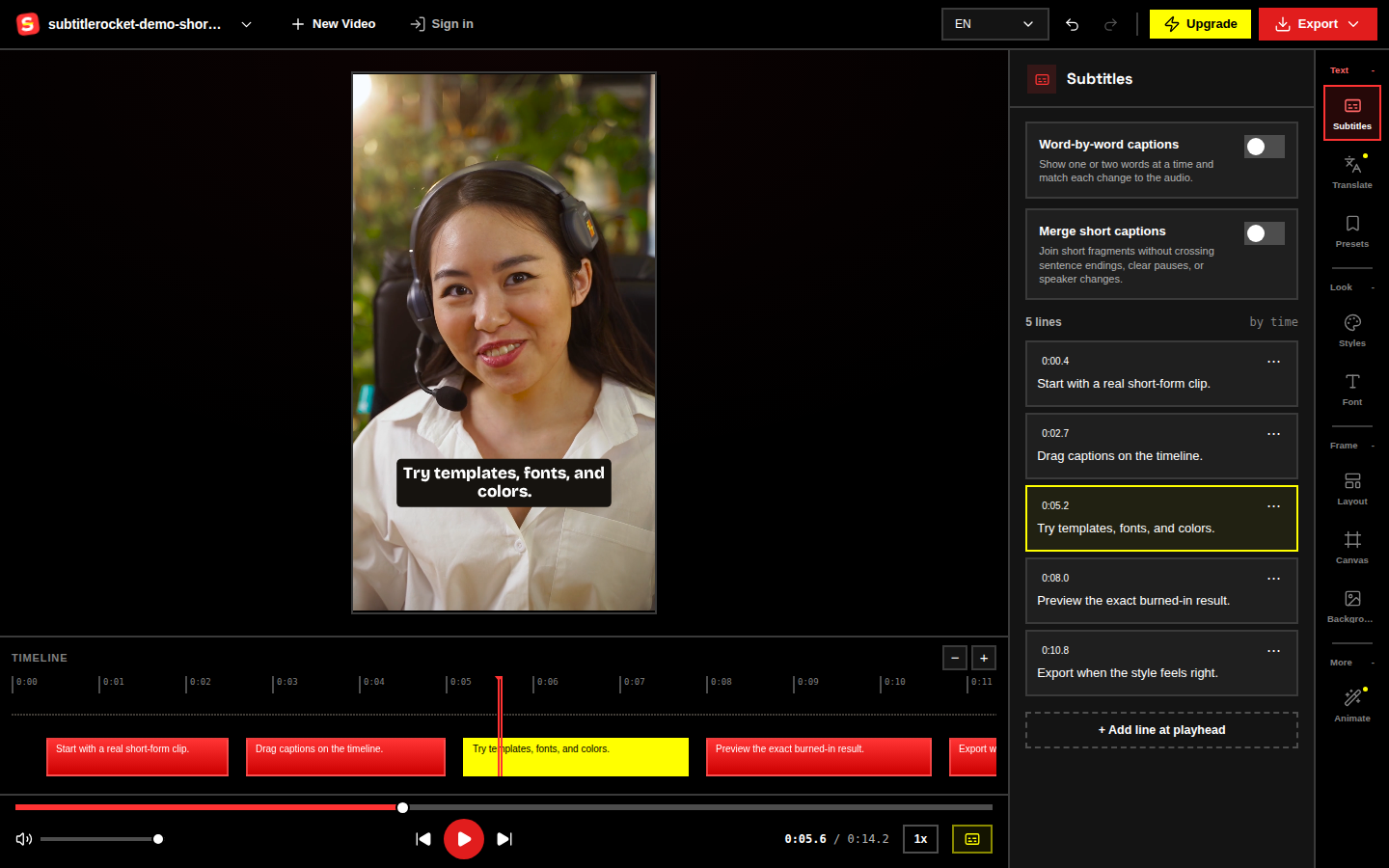
Select a caption block on the timeline. Drag the whole block to move it earlier or later, or drag its left and right edges to change when it starts and ends. If a line feels rushed, give it more time when the speech allows; if it is still too dense, split the text instead of shrinking the font. That is the practical way to adjust reading speed without changing the video playback speed.
04 / Choose the look
Pick a style after the words and timing are right
Open Styles or Presets and choose a readable starting point, then use Font and Layout to fit the footage. Check the full preview rather than judging one easy line:
- Keep captions large enough for a phone without forcing every phrase onto three lines.
- Move the caption block away from faces, product details, and social-app controls.
- Highlight templates follow each spoken word on transcribed captions; manually typed lines keep a fixed emphasis.
- Translate and Animate are marked coming soon in the editor. AI translation is a Max feature for 50+ languages, not a free editing tool.
Watch once with sound for timing, then once muted for readability. If the story is hard to follow muted, fix the wording or line length before adding more decoration.
05 / Export
Preview the whole clip and export
Play from start to finish and check every edit in context. Free includes 90 transcription minutes per month, clips up to 15 minutes, and a 720p MP4 with a small watermark. No account is required to try, edit, preview, or make that free export.
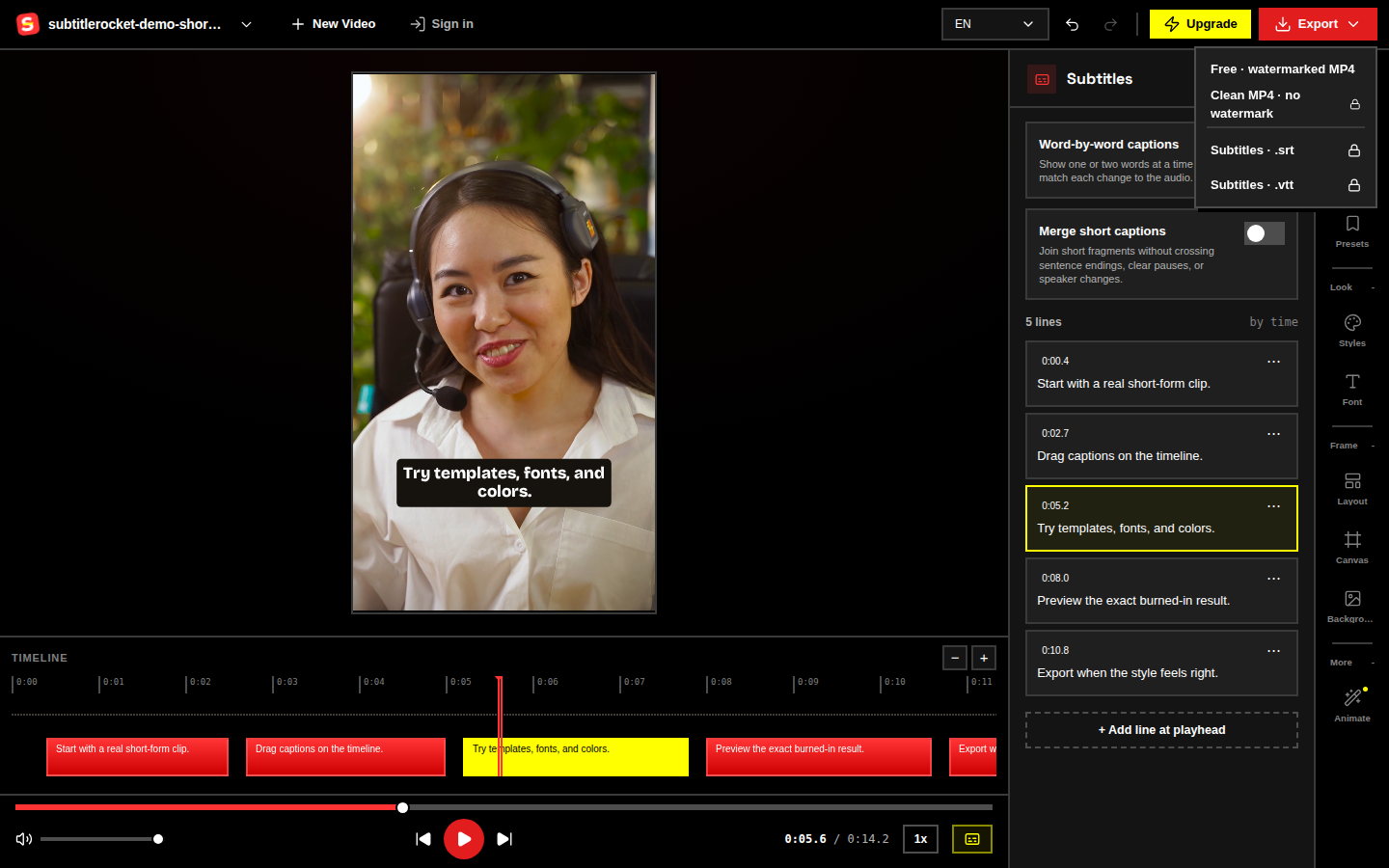
Pro is $7 per month or $56 per year and adds 1,000 minutes per month, clips up to 30 minutes, clean 1080p export, SRT/VTT downloads, and saved style presets. Max is $15 per month or $132 per year with 3,000 minutes per month, clips up to 60 minutes, and AI translation in 50+ languages. Sign in with a six-digit email code only for watermark-free export or plan management.
Fix a real caption track
Start with the online subtitle editor, then open the demo.
Review the workflow at /tools/online-subtitle-editor, then open /app to edit the sample or choose your own clip.
Open the online subtitle editor