 SubtitleRocket
Caption tutorial
How to Use an AI Subtitle Generator for Free
Generate captions from speech, correct the text and timing, choose a style, and export a 720p video with a small watermark.

An AI subtitle generator saves the slow first pass: it listens to speech, turns it into timed caption lines, and leaves you with text you can correct. SubtitleRocket lets you try that workflow without signing up. The Free plan includes 90 transcription minutes each month, clips up to 15 minutes, and 720p MP4 export with a small watermark.
The free download is a 720p MP4 with a small SubtitleRocket watermark. Clean 1080p MP4 and separate .srt or .vtt files require Pro or Max. You do not need an account to try the demo, edit, style, or preview; an email and 6-digit code are only requested when you export without the watermark or manage a plan.
00 / Before you start
What happens in the browser?
The editor keeps the workflow short, but the boundaries are worth knowing:
- Your video stays in the browser. Only the extracted audio is sent for speech transcription; the video itself is not uploaded for editing.
- Rendering is client-side. Preview and MP4 export run on your device. Use Chrome, Edge, or Safari 17+ because Firefox export is unsupported.
- Free is a real test export. You receive 90 transcription minutes per month, clips up to 15 minutes, and a 720p MP4 with a small watermark.
- Paid plans unlock publishing formats. Pro is $7/month or $56/year for 1,000 minutes, 30-minute clips, clean 1080p, .srt/.vtt, and saved style presets. Max is $15/month or $132/year for 3,000 minutes, 60-minute clips, and AI translation in 50+ languages.
01 / Load the demo
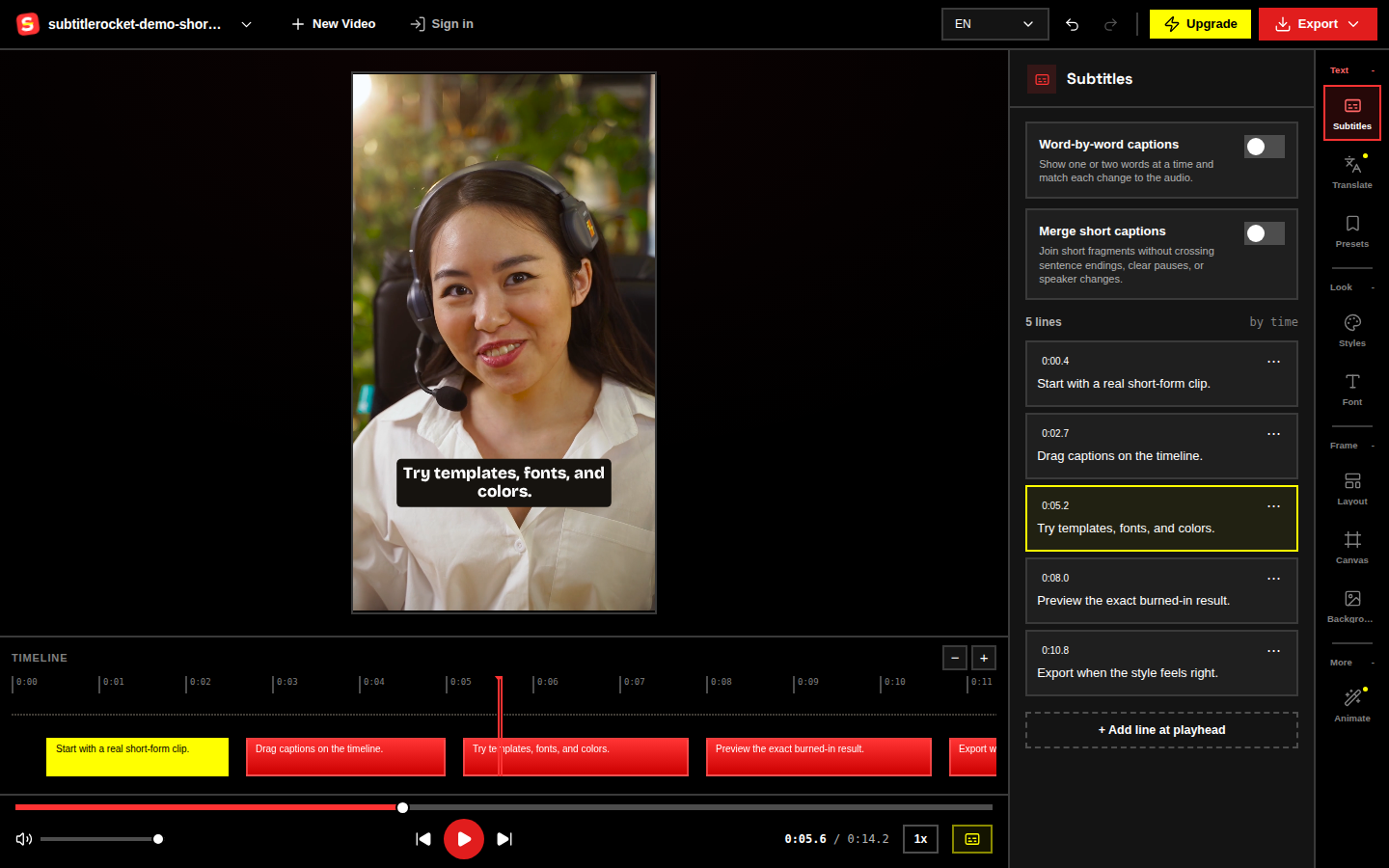
Open the editor and click Try demo
Go to /app and click Try demo. A sample clip with captions appears instantly, so there is no transcription wait and nothing is generated for the demo. It all runs in the browser and does not require signup. When you are ready to caption your own video, choose a file instead; SubtitleRocket extracts its audio and automatically generates timed captions from the speech.
Try the AI subtitle generator →
02 / Correct the words
Edit the caption text and timing
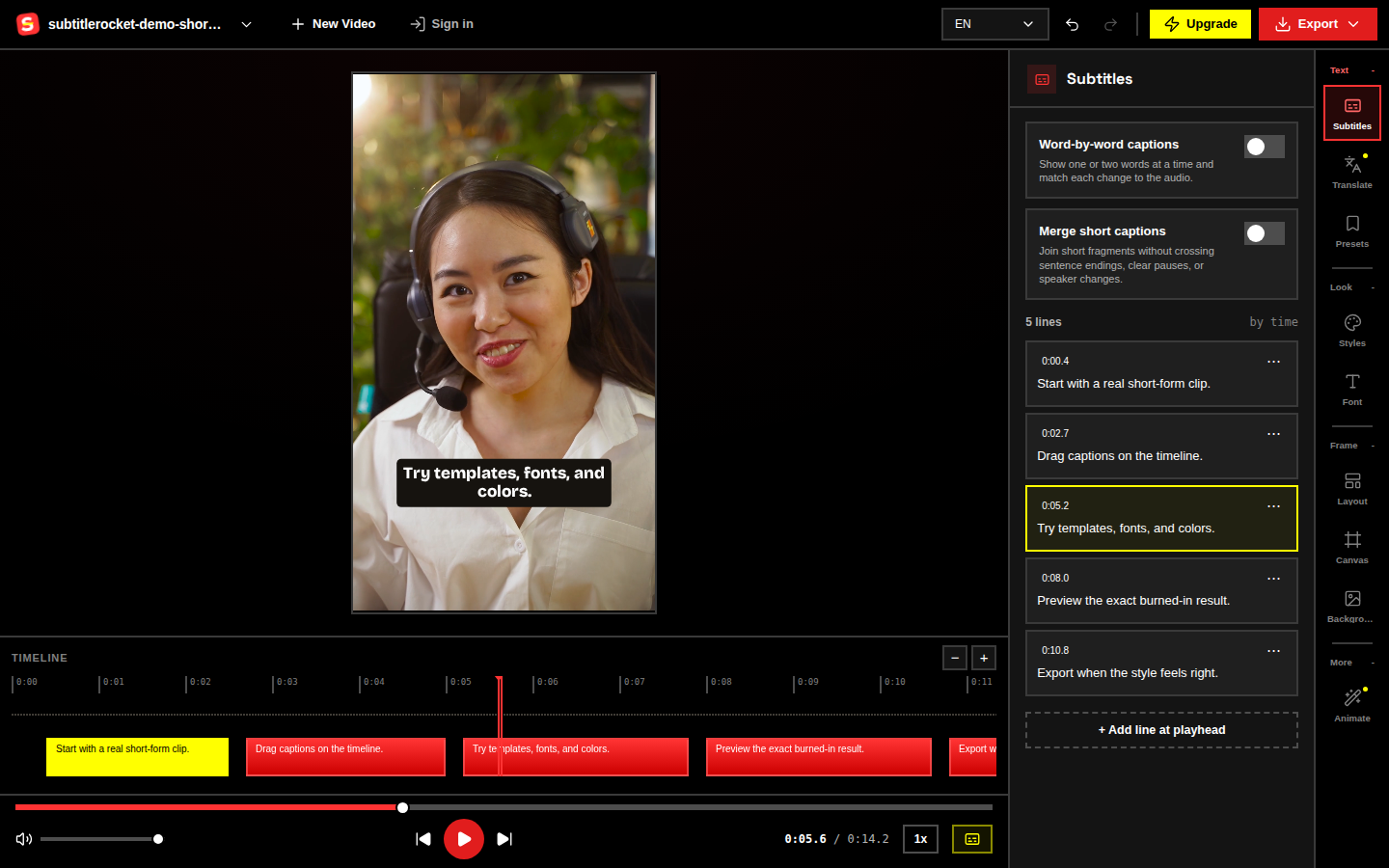
Open the caption list and play the clip from the beginning. Correct names, numbers, punctuation, and any words the speech recognizer missed. Click a caption to change its text, then adjust its start or end time if it enters too early or disappears too soon.
Keep each caption easy to scan on a phone. Split a crowded idea at a natural pause and check the transition in context. Transcribed lines carry per-word timings, so highlight templates can follow each spoken word.
03 / Pick a look
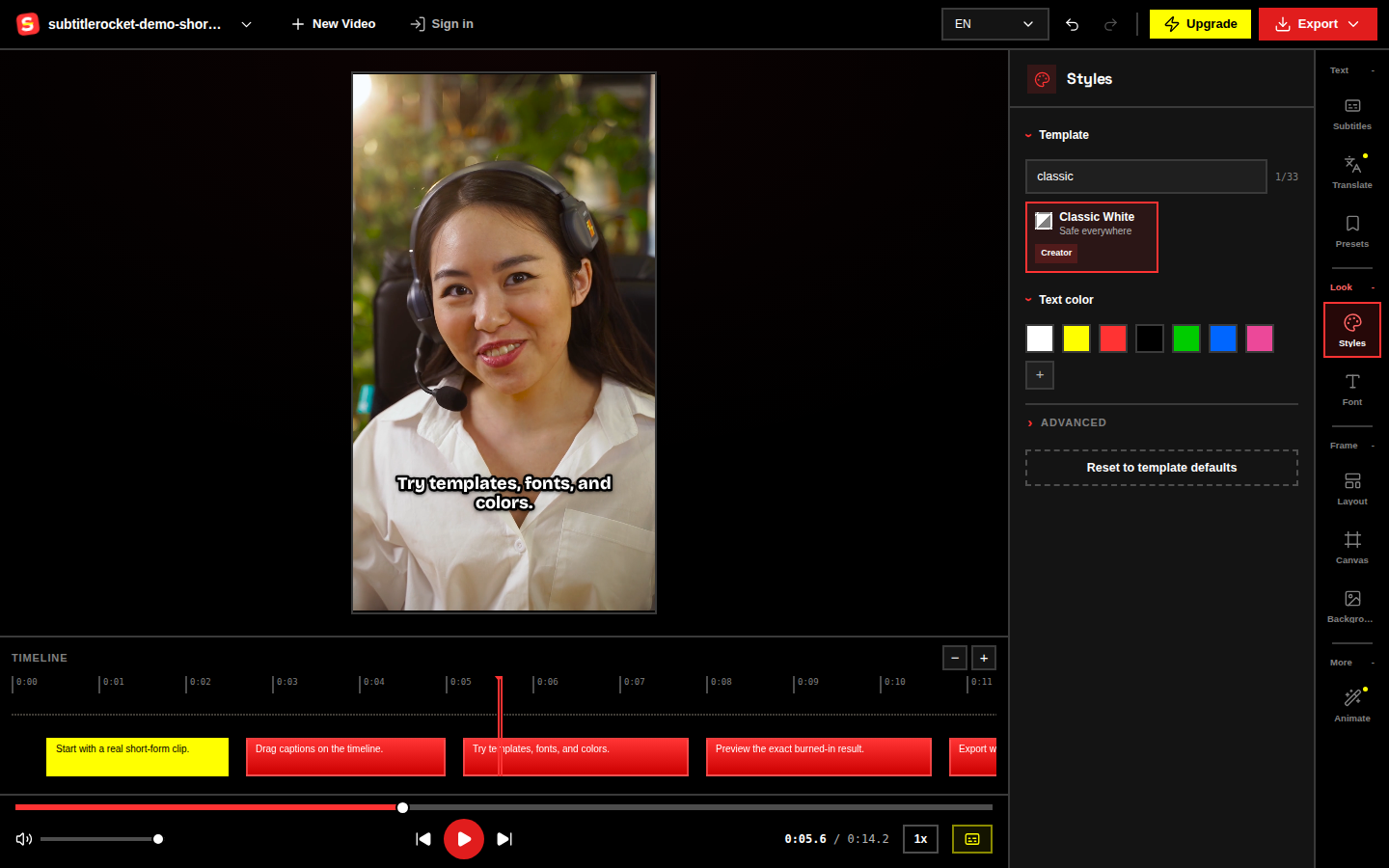
Choose a style or template
Open Styles and pick a template that remains readable over your footage. You can adjust font, color, outline, background, size, and placement. Highlight templates follow each spoken word using the transcription's word timings; only manually typed lines fall back to a fixed emphasis. Translate and Animate are marked coming soon in the editor; AI auto-translation is a Max feature, not a free live tool.
04 / Review the clip
Preview the captions before exporting
Play several parts of the demo or your uploaded clip and check the actual frame, not just the text list:
- Read every caption once at normal playback speed.
- Move text away from faces, product details, and platform controls.
- Check both short lines and the longest caption for awkward wrapping.
- Confirm that timing changes and style choices still work on a phone-sized preview.
Preview one dense section and one fast exchange. If both are readable without pausing, the rest of the clip is usually much quicker to review.
05 / Export honestly
Choose the free or clean export
Open Export. The menu makes the choice explicit: “Free · watermarked MP4” creates a 720p file with a small watermark, while “Clean MP4 · no watermark” is the paid option. The render happens fully on your device, so keep the tab open until the download is ready.
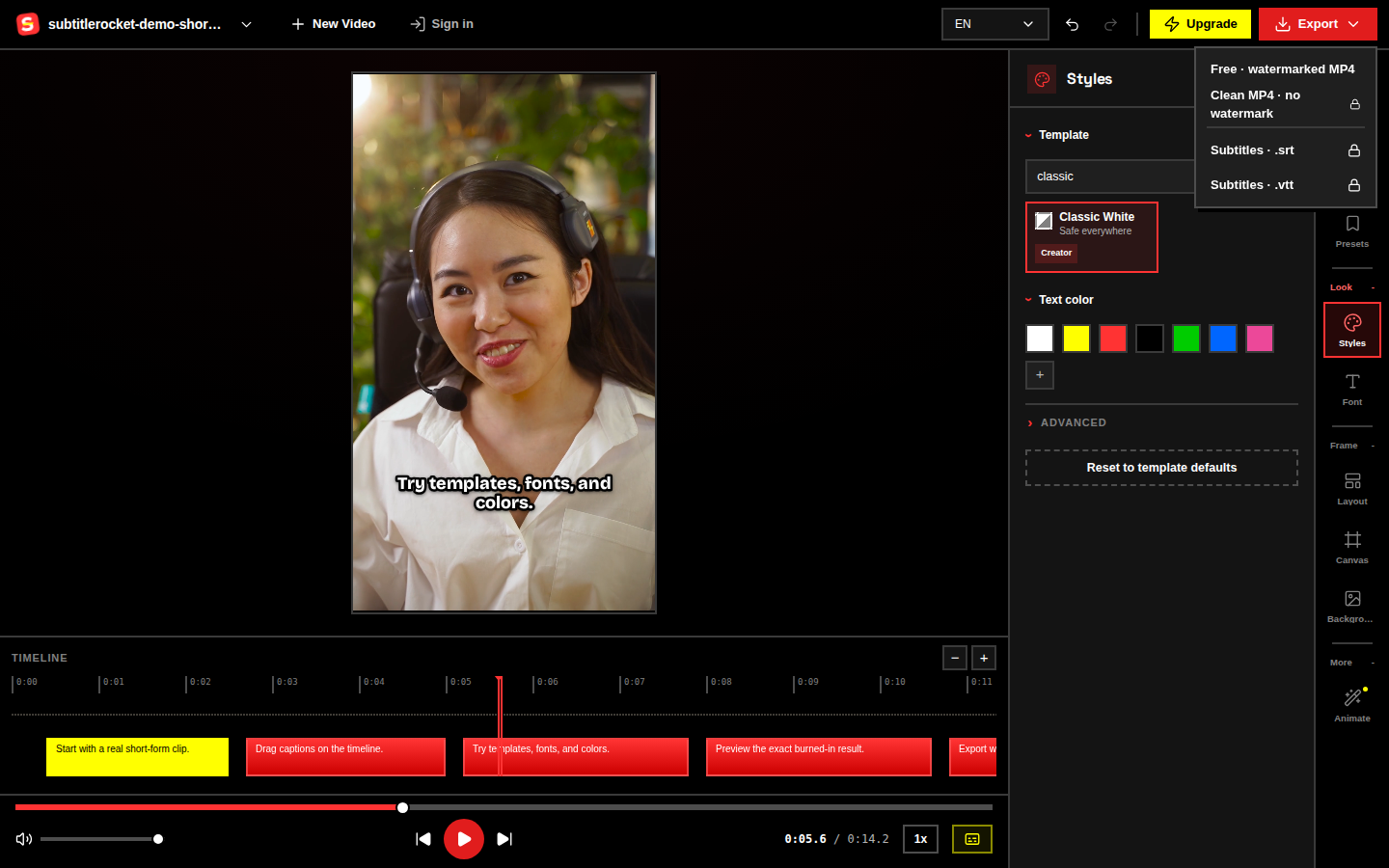
Upgrade to Pro for clean 1080p MP4, .srt/.vtt downloads, saved style presets, 1,000 monthly transcription minutes, and clips up to 30 minutes. If you searched for a subtitle generator no watermark, /tools/subtitle-generator-no-watermark explains that paid clean-export option honestly. Start at /tools/ai-subtitle-generator or go directly to /app to try the demo.
Generate your first caption draft
Start with the AI subtitle generator, then choose the export that fits.
Visit /tools/ai-subtitle-generator for the guided entry point, see /tools/subtitle-generator-no-watermark for the clean-export option, or open /app and click Try demo.
Try the AI subtitle generator