 SubtitleRocket
Caption tutorial
How to Make Bilingual Subtitles with Two Stacked Lines
Create clear two-line captions with the original language above a translation, using a real browser editor and bilingual template.
Bilingual subtitles put the original speech and a second language on screen at the same time. A bilingual caption generator is useful here because the two lines need consistent spacing, contrast, and timing—not just a translation pasted wherever it fits. In SubtitleRocket, you can apply the live bilingual template, then type or paste the second-language line yourself. Automatic translation is available on Max; the Translate tool visible in the editor is currently marked coming soon.
The bilingual template is live and editable, but it does not translate captions for free. Add the second language by hand or paste a translation; AI translation across 50+ languages is a Max feature. Your video stays in the browser, only its audio is sent for transcription, and rendering is fully client-side.
00 / Before you start
What makes bilingual subtitles easy to follow?
Two languages compete for limited screen space, so a simple visual hierarchy matters more than decoration:
- A stable line order. Keep the original language on top and the translation below throughout the clip.
- Matched meaning, not matched length. Translate the idea naturally; shorten either line when a literal version becomes too wide.
- Clear separation. Use line spacing and contrast so viewers can find their language without searching.
- Shared timing. Both lines should appear and disappear together unless the meaning genuinely spans different beats.
01 / Open a project
Open the demo or upload a real clip
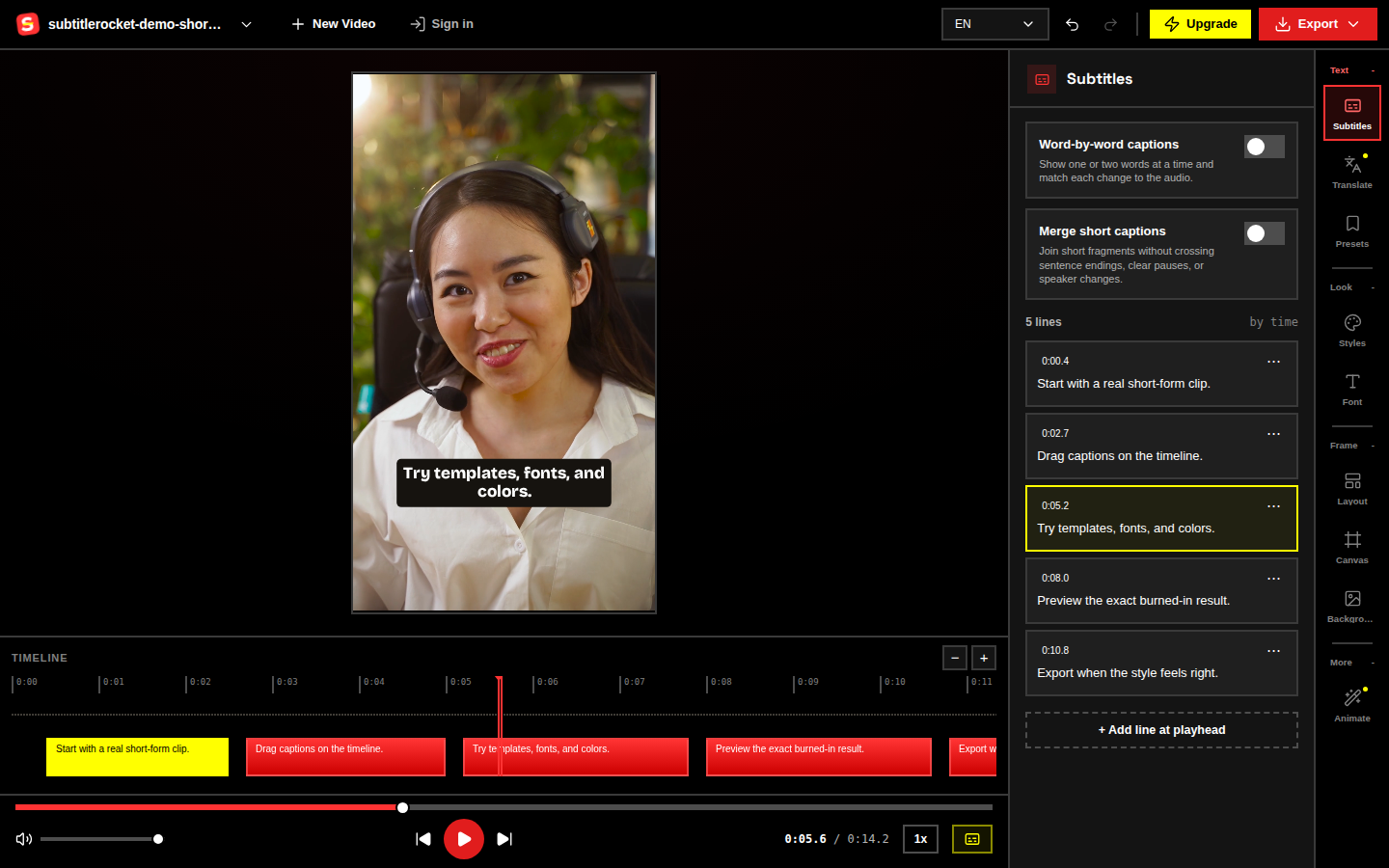
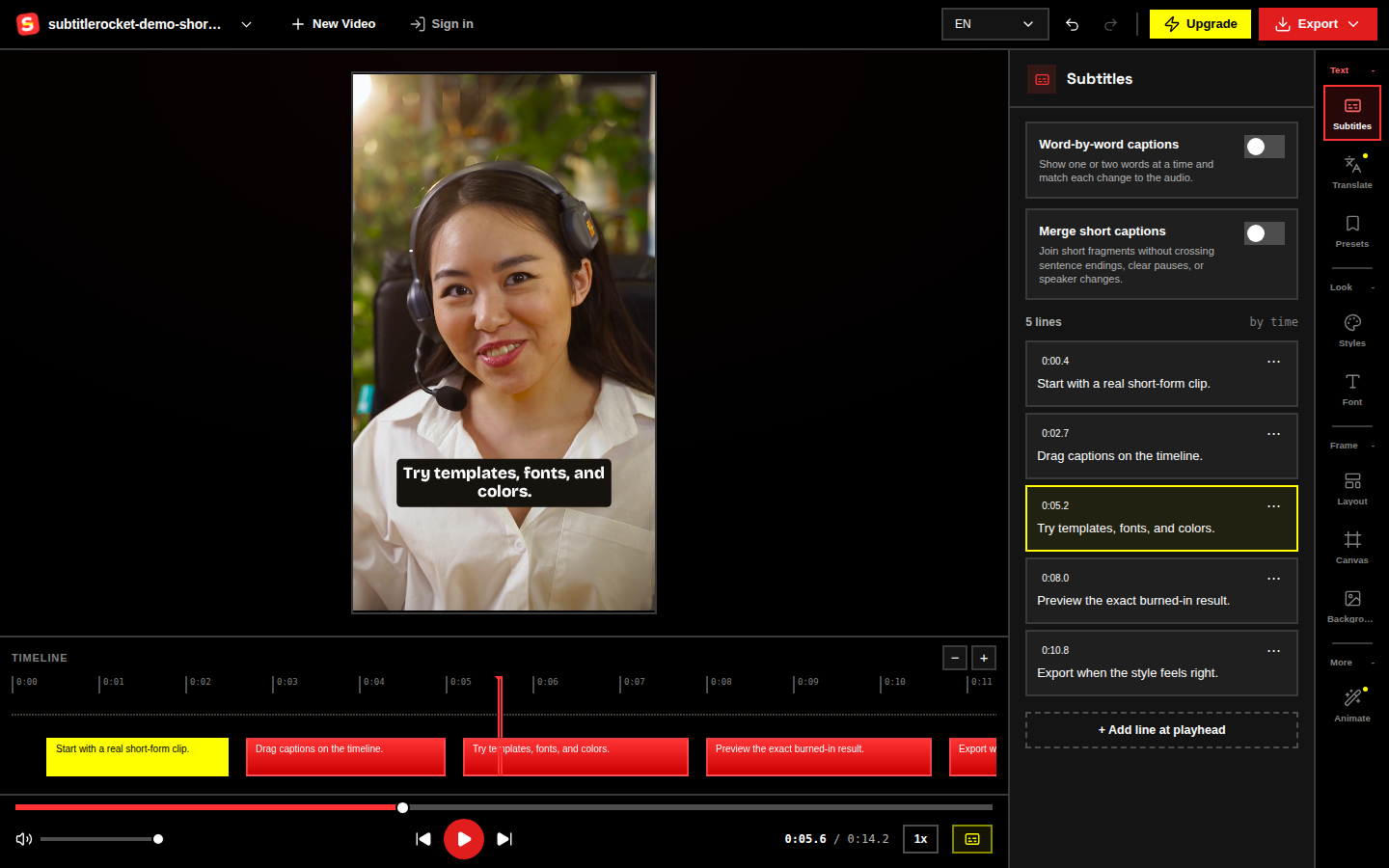
Open /app and click Try demo. A sample clip with captions loads instantly—there is no upload or caption generation in this demo path, and everything stays in the browser. For your own video, choose an MP4, MOV, or WebM file instead; SubtitleRocket sends only the extracted audio for transcription and generates editable captions from speech.
Open the bilingual subtitle template →
02 / Fix the words
Edit the source captions and timing
Read every source-language caption before adding a translation. Correct names, numbers, punctuation, and any words the speech recognizer misheard. Drag the timing controls when a line starts late or disappears before the speaker finishes.
Keep each caption focused on one idea. Shorter source lines make it much easier to fit a natural second-language version without shrinking both lines into tiny text.
03 / Stack both languages
Apply the bilingual template and add the second line
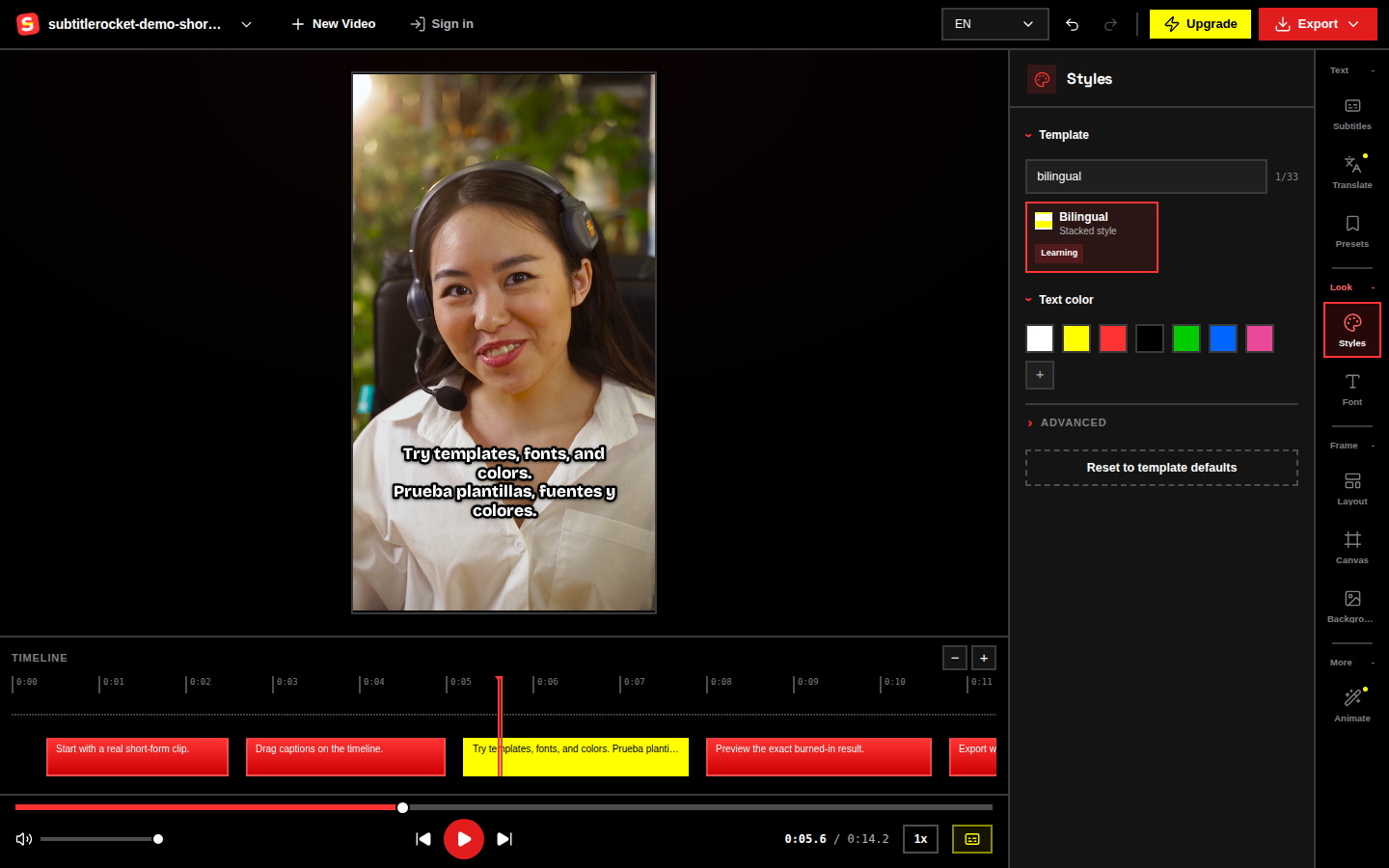
Open Styles and choose the bilingual caption template. It creates the live two-line layout: original language above, second language below. Then edit each caption and type or paste the translated line. The template handles the stacked presentation, not the translation itself; Max includes automatic translation, while the editor’s separate Translate control currently says coming soon.
04 / Check readability
Make both language lines readable
Play several dense captions in the preview and check the two-line block on a phone-sized frame:
- Keep the same language on top throughout the video.
- Rewrite long translations instead of squeezing them into an overly small font.
- Leave enough line spacing to separate the languages, but keep them close enough to read as one caption.
- Move the block away from faces, product details, and the bottom controls used by Shorts, Reels, or TikTok.
If viewers cannot tell which line is theirs at a glance, simplify the styling before adding more color or emphasis. Word-by-word highlighting follows the voice on transcribed captions; manually typed lines keep a fixed emphasis instead.
05 / Export
Preview and export your bilingual video
Watch the full clip with sound once and muted once. Check meaning, timing, line order, and overlaps. Chrome, Edge, and Safari 17+ support export; Firefox does not. No signup is required to try, edit, or preview. An account using a six-digit email code is needed only for watermark-free export or plan management.
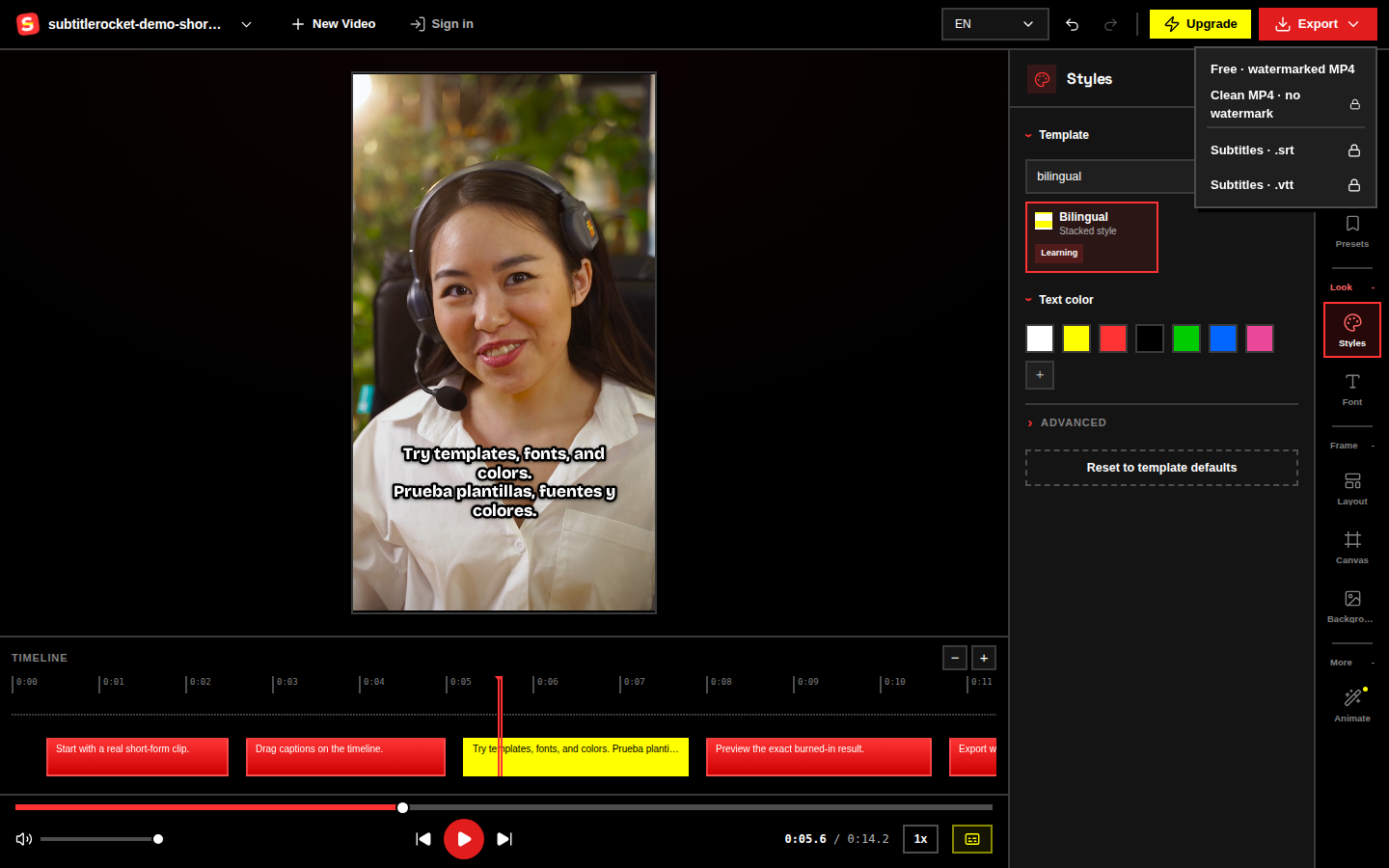
Free includes 90 transcription minutes per month, clips up to 15 minutes, and a 720p MP4 with a small watermark. Pro is $7/month or $56/year for 1,000 minutes, clips up to 30 minutes, clean 1080p, SRT/VTT export, and saved style presets. Max is $15/month or $132/year for 3,000 minutes, clips up to 60 minutes, and AI translation in 50+ languages. All rendering stays client-side.
Build your two-line caption layout
Start with the bilingual caption generator, then open the template in the editor.
Review the workflow at /tools/bilingual-caption-generator, or go straight to /app?intent=bilingual-subtitle-template to try the bilingual template on the demo or your own clip.
Open the bilingual subtitle template